
 by
by
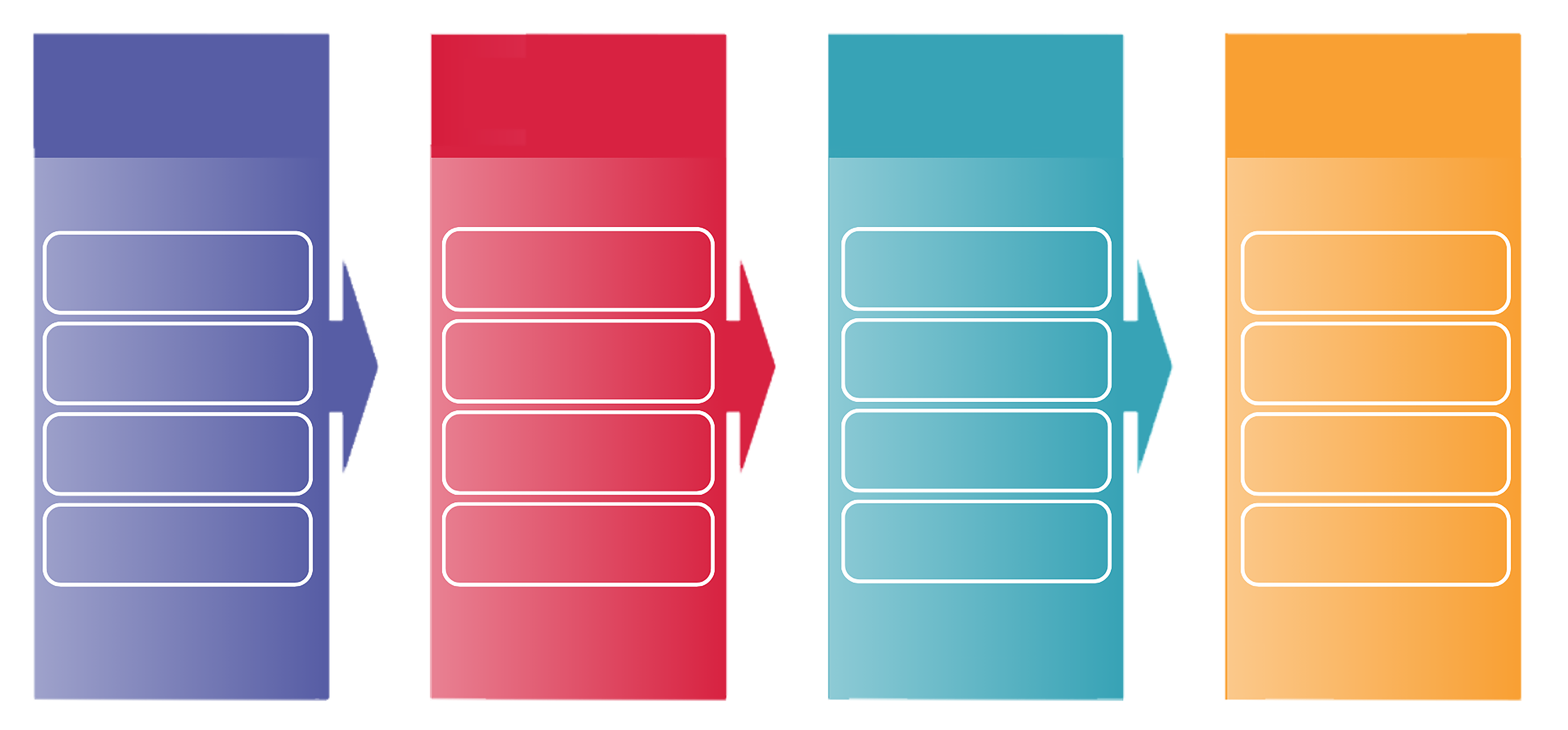 PRODUCE
PROCESS
POST
PROMOTE
Zoom/Speaking
Podcasts
Social Media Posts
iCloud Photos
Descript
ChatGPT
Content Library
Design Style Guide
YouTube
Facebook
Company Website
Social Channels
Thank You Machine
Dollar a Day Ads
Social Commenting
Roundup/Listicles
PRODUCE
PROCESS
POST
PROMOTE
Zoom/Speaking
Podcasts
Social Media Posts
iCloud Photos
Descript
ChatGPT
Content Library
Design Style Guide
YouTube
Facebook
Company Website
Social Channels
Thank You Machine
Dollar a Day Ads
Social Commenting
Roundup/Listicles
YouTube is the primary long-form video platform in the Content Factory’s Post stage. Uploading raw video to YouTube serves two purposes: it preserves the full-length pillar content in a searchable, embeddable format, and it feeds Google’s knowledge graph with entity signals that strengthen the creator’s Knowledge Panel and search presence. Every video uploaded to YouTube becomes a permanent asset that can be embedded on websites, linked in articles, and promoted through Dollar a Day ads.
This article is the definitive guide to uploading raw video to a YouTube channel as part of the Content Factory workflow. It covers the complete process from accessing YouTube Studio to optimizing the upload with proper titles, descriptions, tags, thumbnails, and end screens — all following BlitzMetrics standards.
Where YouTube Uploading Fits in the Content Factory
The Content Factory operates in four stages: Produce, Process, Post, and Promote. Uploading to YouTube is a Post stage task. By this point, the raw video has been produced (captured from Zoom, podcasts, or events), processed (transcribed through Descript, possibly edited into clips), and is now ready for distribution. YouTube is typically the first posting destination because the full-length video lives here, and shorter clips and articles link back to it.
Prerequisites
Before uploading, you need the following:
- Access to the YouTube channel — request via operations@yourcontentfactory.com if you do not have it
- The processed video file from Google Drive (see Upload Pillar Content to Google Drive)
- A thumbnail image (see How to Create a Thumbnail if one needs to be created)
- Title, description, and tags prepared according to the naming conventions below
Step-by-Step Upload Process
Step 1: Open YouTube Studio
Log in to the YouTube channel and navigate to YouTube Studio (studio.youtube.com). Click the “Create” button (camera icon with a plus sign) in the top-right corner, then select “Upload videos.”
Step 2: Select the Video File
Drag the video file from your computer or click “Select Files” to browse. For Zoom recordings, upload the highest-quality video file (typically the .mp4 file, not the audio-only version). While the video uploads, you can begin filling in the metadata.
Step 3: Add the Title
Use a clear, descriptive title that includes the topic and the speaker or guest name where applicable. Follow the format: Topic – Speaker Name or Episode Title | Show Name. Keep the title under 60 characters for optimal display in search results. Include the primary keyword near the beginning of the title.
Step 4: Write the Description
The description should include a one-to-two sentence summary of the video content in the first line (this appears in search results), followed by timestamps for key topics if the video is longer than 10 minutes. Include links to the relevant BlitzMetrics article, the speaker’s website, and any resources mentioned in the video. Add standard channel links at the bottom.
Step 5: Add Tags
Add relevant tags that match the video topic. Include the speaker name, topic keywords, “BlitzMetrics,” “Content Factory,” and any brand or company names mentioned. Tags help YouTube understand the video’s context and recommend it to relevant audiences.
Step 6: Upload the Thumbnail
Upload a custom thumbnail that follows the BlitzMetrics design style. Thumbnails should be 1280×720 pixels, include the speaker’s face where possible, have readable text overlay with the topic, and use brand-consistent colors. See How to Create a Thumbnail for the full process.
Step 7: Set Visibility and Publish
Select the appropriate visibility setting. Most Content Factory videos are set to “Public” immediately unless there is a specific scheduling requirement. If scheduling for a future date, use the “Schedule” option and select the publish date and time.
Step 8: Add End Screen and Cards
After publishing, add an end screen that links to the channel’s most recent upload and a relevant playlist. This keeps viewers engaged with more content. See How to Update End Screens on YouTube for the detailed process.
Verification Checklist
- Video has uploaded completely and is processing
- Title follows the naming convention and is under 60 characters
- Description includes a summary, timestamps (if applicable), and relevant links
- Tags are relevant and include the speaker name and topic keywords
- Custom thumbnail has been uploaded
- End screen has been added with links to related content
- Visibility is set correctly (public or scheduled)
- The YouTube Channel Inventory has been updated
Related Resources
- Content Factory — the full 4-stage framework
- How to Inventory a YouTube Channel — cataloging all channel content
- How to Create a Thumbnail — making click-worthy thumbnails
- How to Cross-Post — distributing the video across other platforms
- How to Post an Article on WordPress — creating the companion article
- Blog Posting Guidelines — standards for all published content
- The Task Library — the full collection of Content Factory tasks
Want Help With Video Distribution?
YouTube uploading is one piece of the Post stage. To learn how to distribute content across all platforms — YouTube, Facebook, Instagram, LinkedIn, and your website — explore the Content Factory courses or let us handle it through the Content Engine Package.
Originally published .
Dennis Yu
Dennis Yu is the CEO of Local Service Spotlight, a platform that amplifies the reputations of contractors and local service businesses using the Content Factory process. He is a former search engine engineer who has spent a billion dollars on Google and Facebook ads for Nike, Quiznos, Ashley Furniture, Red Bull, State Farm, and other brands.
Dennis has achieved 25% of his goal of creating a million digital marketing jobs by partnering with universities, professional organizations, and agencies. Through Local Service Spotlight, he teaches the Dollar a Day strategy and Content Factory training to help local service businesses enhance their existing local reputation and make the phone ring.
Dennis coaches young adult agency owners serving plumbers, AC technicians, landscapers, roofers, electricians, and believes there should be a standard in measuring local marketing efforts, much like doctors and plumbers must be certified. He has appeared on 353 podcasts with 619 credited episodes — see the full list of his podcast appearances.