
 by
by
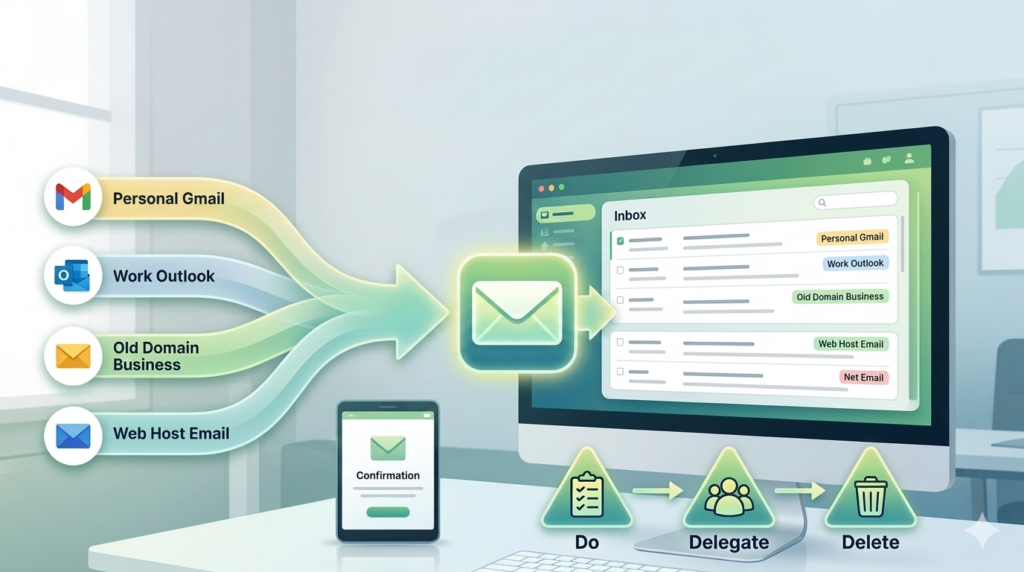
How many email accounts do you check?
Personal Gmail. Work address. That old domain from a business you started three years ago. Something your web host set up.
You can only act on what you can see, and with four inboxes you never see everything at once. There’s no single place where everything you have to deal with lives. That’s the whole problem.
This is DDD, the first of the 9 Triangles. Do, Delegate, Delete.

When something comes in, you handle it, you hand it to someone else, or you kill it. You don’t let it sit and rot in your head for three weeks.
You can’t run that across four accounts. It’s not possible. One inbox makes inbox zero possible. Inbox zero makes DDD possible. And DDD is what makes you productive enough to lead a team, which is the next triangle, CID.

If you can’t manage your own follow-ups, you can’t manage anyone else’s. That’s why this is first.
The end state is two things. Everything arrives in one master account, and that account can send as any of your addresses. Set up forwarding alone and your replies go out from the master account, even when someone wrote to your work address. Send As lets you choose which address the reply comes from, so use it where that matters.
Before you start
Pick the master account you plan to keep for the next ten years. Usually that’s your primary work address.
Write down every address that still receives mail. Include the ones you forgot about, because those are the ones that will bite you.
Keep your phone nearby. Google will want to verify it’s you.
Setting up forwarding
Log into the secondary account you want to route mail from.

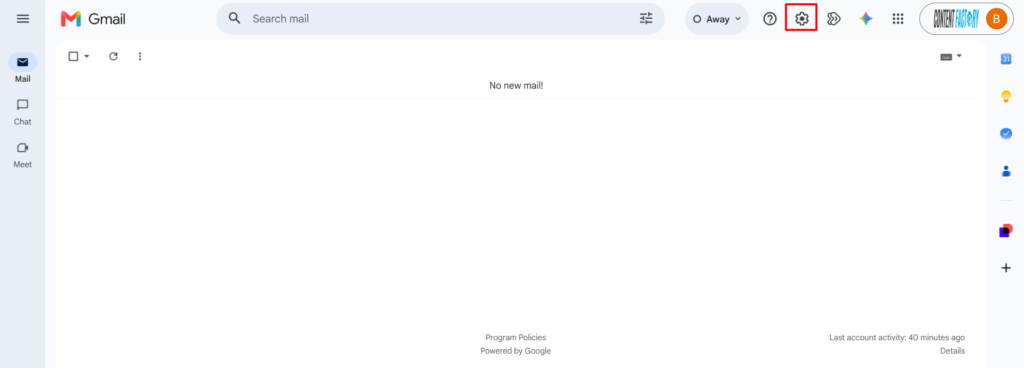
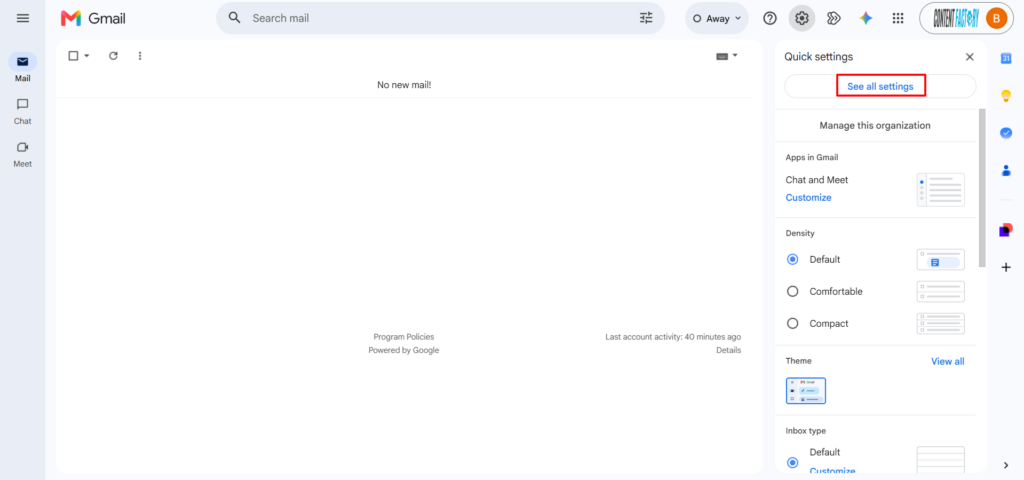
Click the gear icon in the top right, then click See all settings.
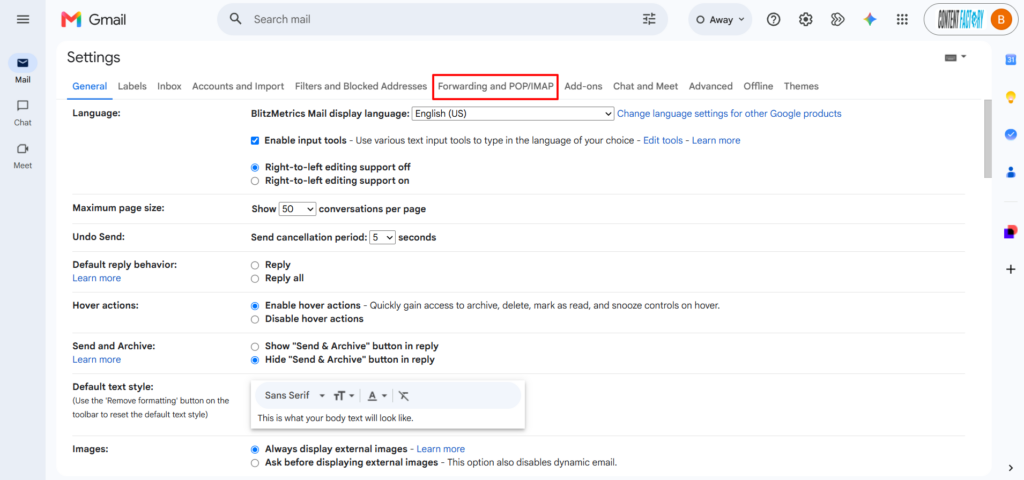
In the horizontal menu inside Settings, click the Forwarding and POP/IMAP tab.
Click Add a forwarding address, type in your master email address, and click Next.


Google will ask you to confirm it’s you. Sometimes that’s a prompt in the Gmail app where you tap Yes, it’s me and then tap the two digit number on your screen. Sometimes it’s an SMS code.
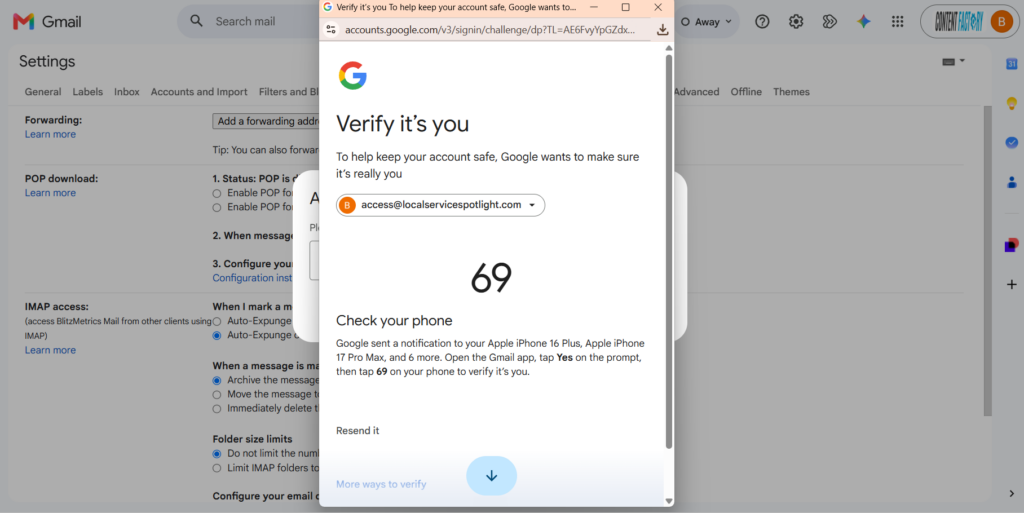
Complete whichever one shows up, then click Proceed and OK.
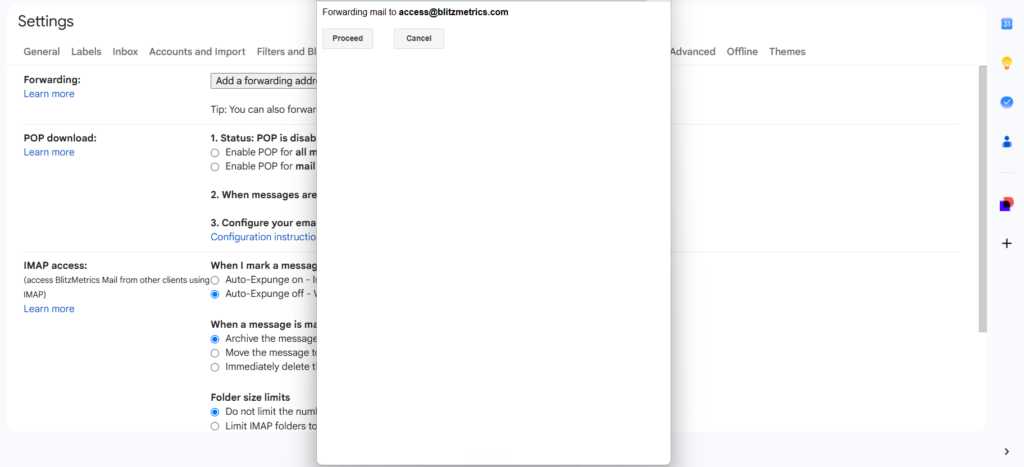


Now go check your master inbox. Google sends a confirmation email there and you have to open it and click the link.
This is the step everybody misses. Forwarding does not turn on until you do this. People set the whole thing up, walk away, and wonder why nothing arrives.
Back in the forwarding settings, select the radio button for Forward a copy of incoming mail to. Next to it is a dropdown that decides what happens to Gmail’s copy. Choose archive Gmail’s copy, so the secondary inbox stays clean and nothing gets deleted.
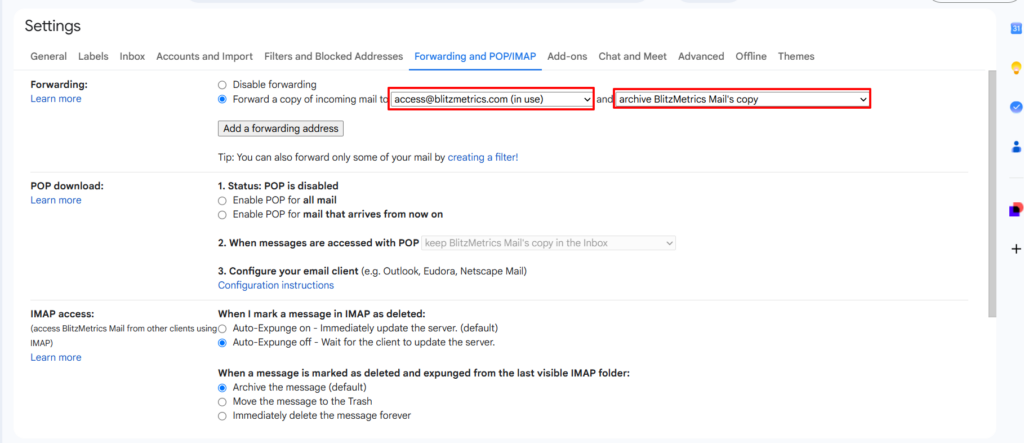
Scroll to the bottom and click Save Changes.

Setting up Send As
In your master account, go to Settings, then Accounts and Import, then Add another email address. Enter the secondary address, verify it, and repeat for every address you forwarded.
Gmail will now default to replying from whichever address the mail was sent to, and you can switch it manually on any reply.
Test it
Send an email to the secondary address from somewhere else. Confirm it lands in your master inbox. Reply, and confirm the reply comes from the right address.
A forwarding rule that silently fails is worse than no forwarding rule, because you think you’re covered.
Non Gmail accounts
In Outlook, go to Settings, Mail, Forwarding. In Yahoo, go to Settings, More Settings, Mailboxes, pick the account, then Forwarding. For a custom domain, set up a forwarder or an alias at the domain level instead of from the mailbox. That’s cleaner and it survives people leaving.
If a provider has no forwarding option, pull instead of push. In your master account go to Settings, Accounts and Import, Check mail from other accounts, and add it via POP. It’s slower, but it works.
Now actually run DDD on it
One inbox is the setup. DDD is the habit.
Process to zero at least once a day. If it takes under two minutes, do it right now. If someone else should own it, delegate it with a name and a due date, which for us means it goes into Basecamp and not into your memory. If it needs no action, archive it.
Nothing should be waiting on you that you don’t know about. That’s the whole point.
And that one email you’ve been dreading? Tackle it first. Most of the time it takes five minutes, but it’s been sitting on your mind for weeks.
I run about 1,000 emails a day through one inbox. Here’s how I process them, including Boomerang for follow ups.
What usually goes wrong
People never click the confirmation email, so forwarding looks configured but nothing shows up. They skip Send As and their replies come from the wrong identity. They keep a copy in the source inbox, so now they have two inboxes with the same mail in them. They build a loop where A forwards to B and B forwards back to A. Or old filters in the master account quietly archive everything coming in.
The biggest one is consolidating your inputs without consolidating your decisions. If you have one inbox and still leave it sitting at 400 unread, you’ve gained nothing. You just moved the mess.
Some people get to inbox zero illegitimately, by skimming and skipping messages. That’s worse, because the skimming is what makes tasks take longer.
What’s next
Once you’re at one inbox and processing to zero, you’re doing DDD.
The next triangle is CID, which is Communicate, Iterate, Delegate. That’s what lets you run a team instead of just running yourself.
If you’re not organized, you can’t delegate. And if you can’t delegate, you’re the employee.
Part of Level 1
One inbox. Do, delegate, or delete it the same day. Every handoff is a Basecamp to-do with an owner and a date. Answer on the thread that asked. Done means you looked. This page is one piece of that loop.
Getting Stuff Done → The Level 1 hub, with the map of every piece.
Originally published .
Dennis Yu
Dennis Yu is the CEO of Local Service Spotlight, a platform that amplifies the reputations of contractors and local service businesses using the Content Factory process. He is a former search engine engineer who has spent a billion dollars on Google and Facebook ads for Nike, Quiznos, Ashley Furniture, Red Bull, State Farm, and other brands.
Dennis has achieved 25% of his goal of creating a million digital marketing jobs by partnering with universities, professional organizations, and agencies. Through Local Service Spotlight, he teaches the Dollar a Day strategy and Content Factory training to help local service businesses enhance their existing local reputation and make the phone ring.
Dennis coaches young adult agency owners serving plumbers, AC technicians, landscapers, roofers, electricians, and believes there should be a standard in measuring local marketing efforts, much like doctors and plumbers must be certified. He has appeared on 353 podcasts with 619 credited episodes — see the full list of his podcast appearances.