
How to Grant Access to Your Google Ads Account
Google Ads is Google's platform for running ads on Search, YouTube, and websites across the Display Network. For local business owners, it’s one of the most efficient ways to reach people actively searching for your services. You can control your budget, target specific zip codes, and track which ads drive calls and clicks.
With Google Ads, you can reach potential customers at the exact moment they’re searching for what you offer. It’s a flexible and trackable system that helps local businesses generate real-world results such as calls, leads, and store visits.
When paired with Google Local Service Ads (LSAs), it becomes even more effective by letting you follow up with missed leads and prepare for more advanced advertising campaigns.
Granting us access lets us start improving your campaigns right away. We can audit your account, verify your tracking, and set up everything properly. Connecting more accounts gives us better data to improve targeting, boost ad performance, and increase your presence across Google platforms.
Google Ads is one of the key components of the Access Checklist, which outlines all platforms and permissions required to set up your digital presence.
Follow the steps below to give access quickly and avoid delays.
Task Checklist
Information that you will need:
- Your Google Ads Customer ID (format: XXX-XXX-XXXX).
Tools that you will need:
- A modern desktop browser such as Chrome, Firefox, or Edge.
Steps:
- Log in to https://ads.google.com.
- Find and send your Customer ID.
- Open the “Access and Security” section under Tools.
- Go to the “Managers” tab and accept the request.
Estimated Time to Complete: 2 to 5 minutes.
Step 1: Log in to Google Ads.
Go to https://ads.google.com and sign in with your Gmail.
Pro Tip: Use the same Gmail tied to other Google tools like Analytics and Tag Manager.

Step 2: Identify and Send Your Customer ID.
Locate your Customer ID at the top-right of the screen (format: XXX-XXX-XXXX).
Click the ? icon if needed to reveal it. Then email it to access@yourcontentfactory.com.
At this point, our team will send you an invite request at a later time. The invite request will appear in your inbox or your Basecamp project, which our team may create for you depending on the package you purchased. It may take us a few hours or a few business days to send the invite.

Step 3: Open “Access and Security” Settings.
Click the wrench icon in the top-right corner.

Under the Setup column, click Access and Security.

Step 4: Go to the “Managers” Tab and Accept Access.
Click the Managers tab at the top.
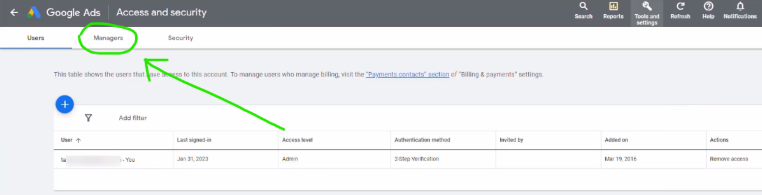
Find the pending invite from Content Factory and click Accept.
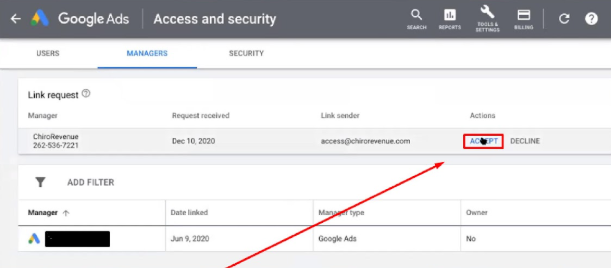
Final Result
You’ll see the manager listed under “Managers” with an active status. They can now manage your campaigns.

That's it. You're done. Good job!
Verification Checklist
#1 You are logged into the correct Google account.
#2 You have accepted the invite.
#3 The user ‘access@yourcontentfactory.com’ appears as a manager in Google Ads.
This article is part of the Content Factory system.
|
PRODUCE Record • Capture |
➔ |
PROCESS Transcribe • Edit |
➔ |
POST Publish • Link |
➔ |
PROMOTE Ads • Share |