
 by
by

Inventorying a YouTube channel means cataloging every video into a structured format. Title, URL, publish date, featured speaker, Google ranking data, social media links, view count, duration, and word count from the transcript.
This is one of the most important things you can do in the Content Factory because until you know what content exists and how it performs, you are guessing.
And guessing is expensive.
Where YouTube inventory fits in the Content Factory
The Content Factory has 4 stages. Produce, Process, Post, and Promote.

Inventory belongs to Process. Specifically, organize and catalog. Before you can decide what new pillar content to produce, you need to understand what already exists.
Inventory is a Metrics task in MAA. You are gathering and organizing the data. The analysis and action come after.

Why inventory matters
The inventory tells you which speakers generate the most views, which topics rank on the first page of Google, and where the channel has untapped potential.
But it goes further than content strategy.
Your inventory feeds into repurposing pipelines where videos become articles, social posts, and ads. It populates your personal brand website with authority, speaking appearances, and relationships. It strengthens your Google Knowledge Panel and Grokipedia pages by giving structure to your entity signals. It trains AI recommendation engines like ChatGPT, Grok, and Gemini on your corpus of knowledge. The more structured content you have inventoried, the better AI can represent you and recommend you.
During inventory, you should also be flagging positive mentions. These are the quotes, endorsements, and praise from guests and hosts that you can place on landing pages to lift conversion rates.
You should also be identifying your Greatest Hits. Not every video is equal. The ones that belong in your 3×3 grid deserve ongoing promotion and repurposing. The rest you leave alone.
This same inventory process applies beyond YouTube. Podcasts you host and podcasts you have been on. Speaking appearances. Social media posts. Media features. Conference talks. YouTube is just one channel in a comprehensive content inventory.
Tools
If you are doing this manually for learning purposes, you need a Google Sheet with the inventory template and access to the YouTube channel.
If you are using agents, you need an AI agent like Claude. The agent handles timestamp removal, word counting, transcript extraction, and data structuring automatically as part of executing the steps below.
Columns in your inventory
Video Name, Date, URL, Featured Speaker, First Page, Video Ranking, Speaker Twitter, Speaker LinkedIn, Views, Video Length, Blog URL, Word Count, File Name
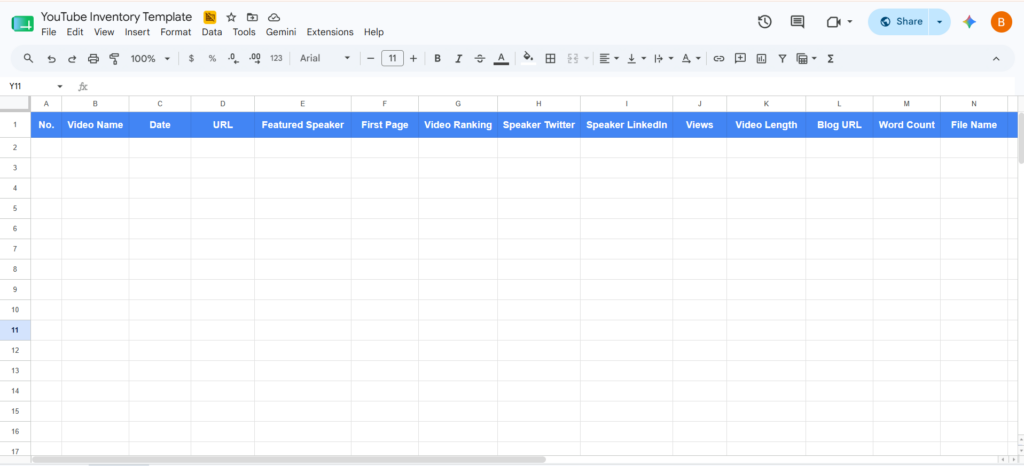
Step-by-step inventory process
These steps apply whether a human or an AI agent is performing the task. Each step can be measured for quality and completion regardless of who or what executes it.
Step 1: Load the videos page
Navigate to the YouTube channel’s Videos tab.
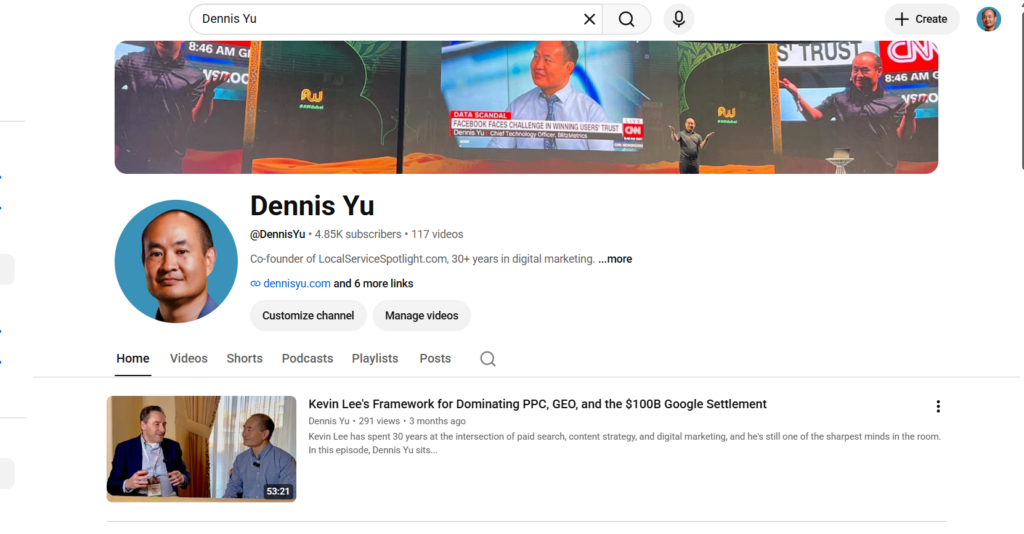
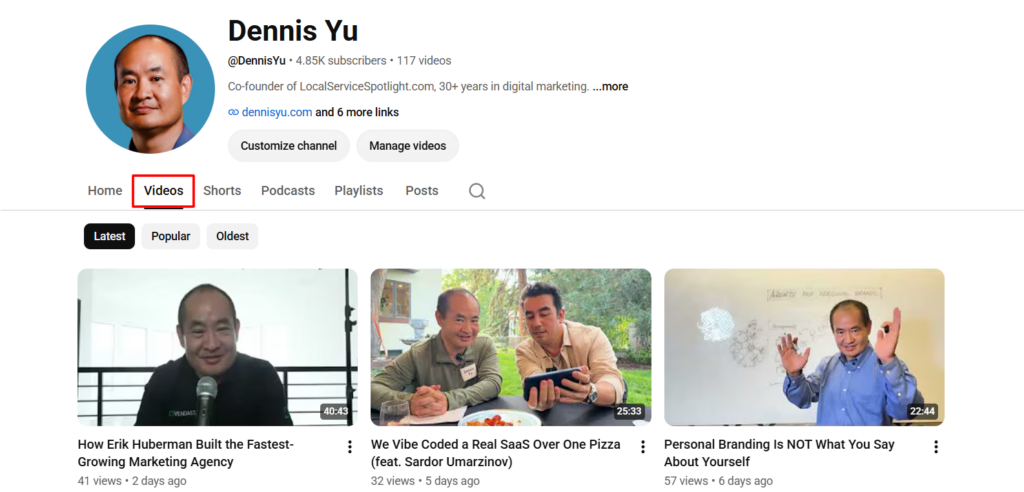
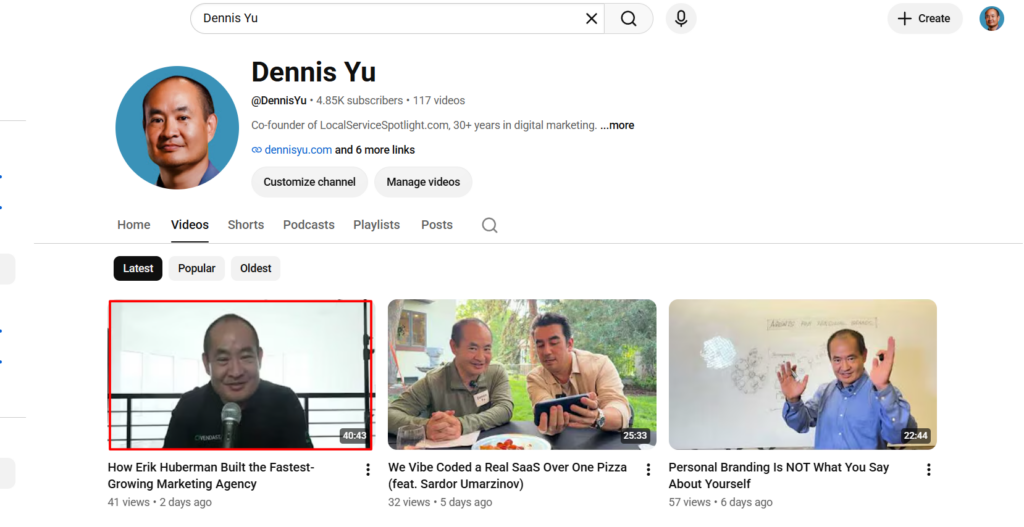
Start with the first video on the list.
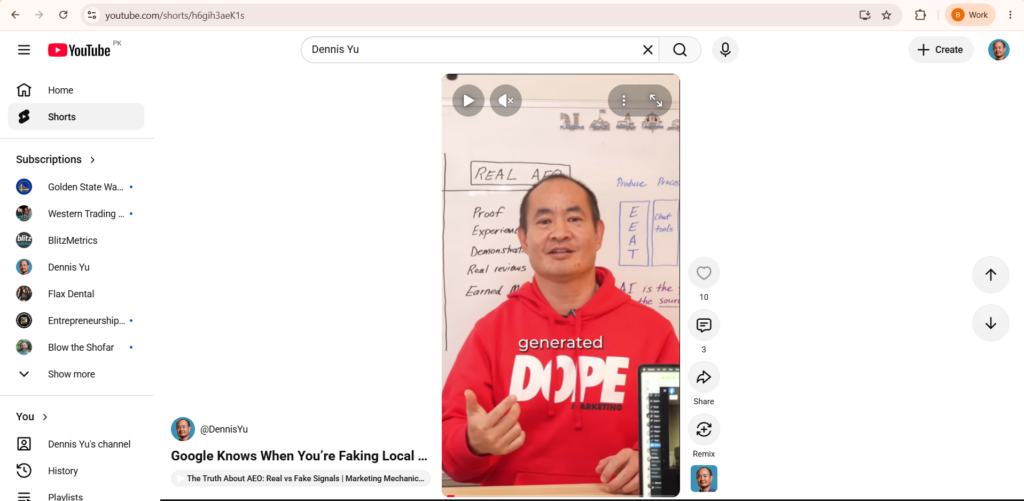
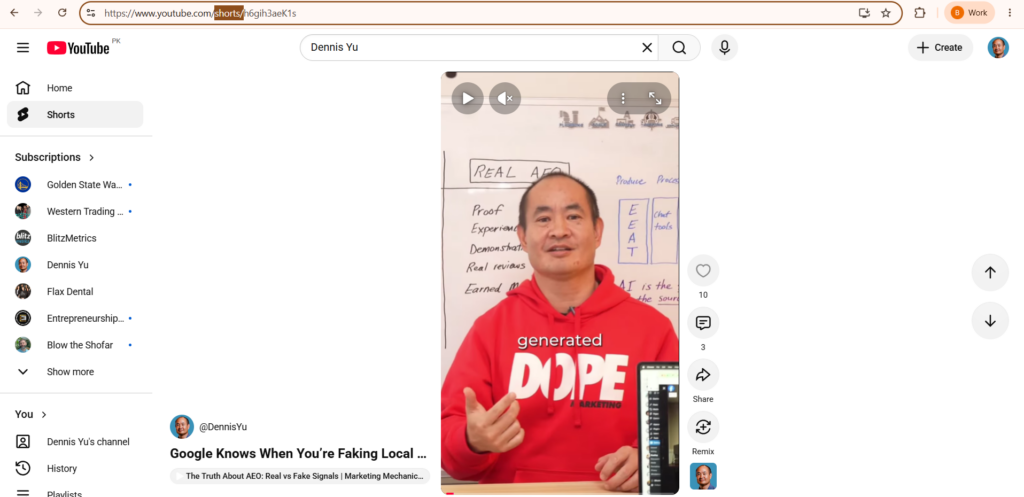
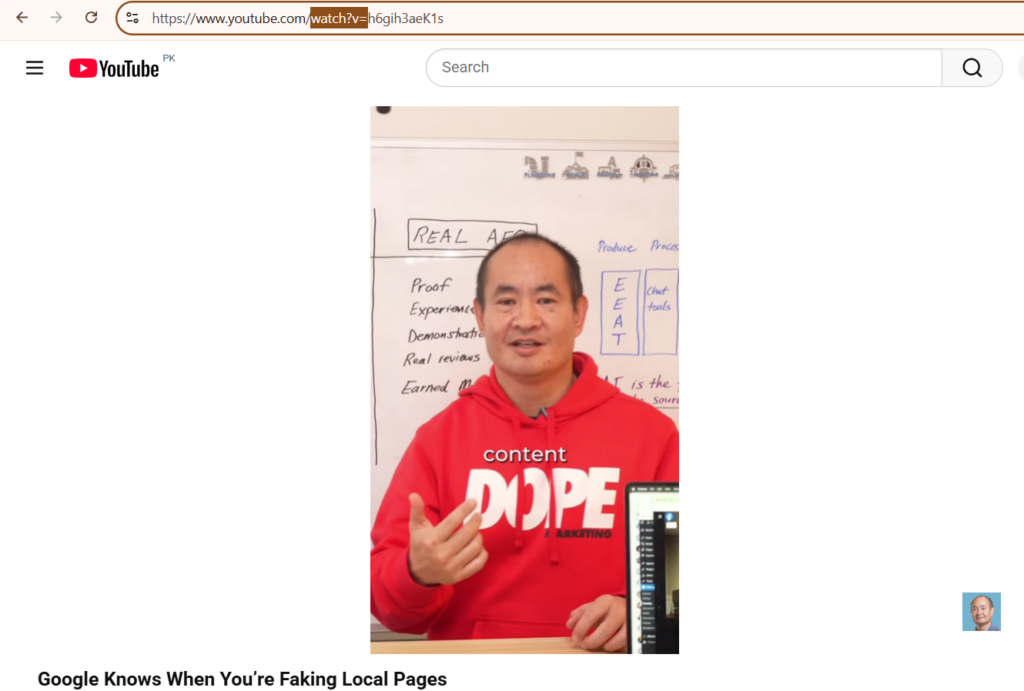
For YouTube Shorts, replace “shorts/” in the URL with “watch?v=” to access the full video page with view count, duration, and transcript.
Step 2: Gather core information
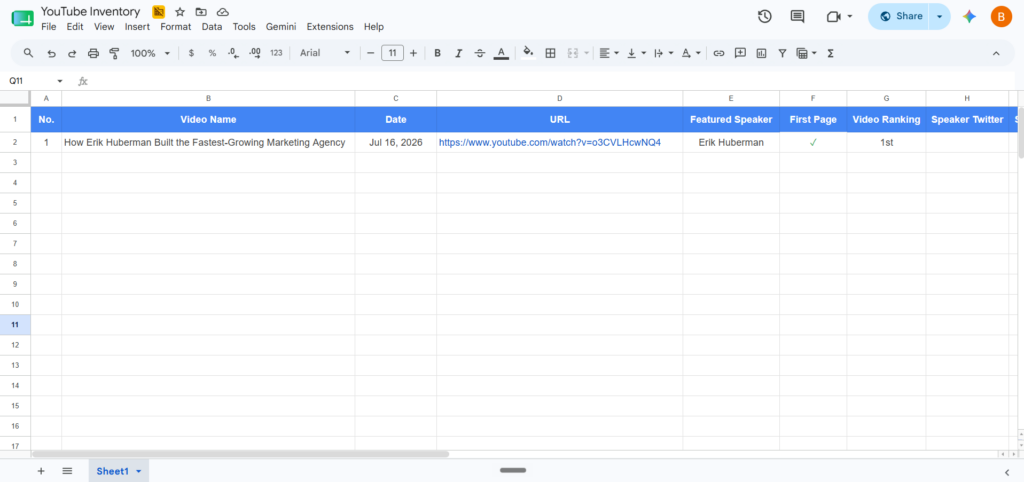
For each video, record the video name, URL, and publish date.


Identify the featured speaker. If the client is interviewing someone, record that person’s name. Check the video description for additional details about the speaker including their company affiliation.

Step 3: Check Google rankings
Search the featured speaker’s name on Google.

Record whether the client or their company appears on the first page of results.

Check if the specific video appears in search results and record the ranking.
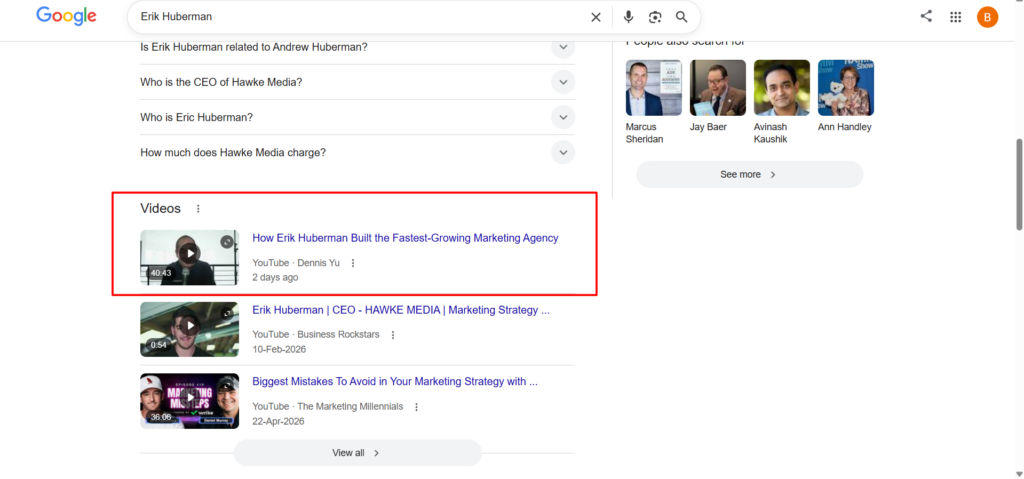
Use “1st” for first-page results and “n/a” when not found.
Step 4: Find speaker social profiles
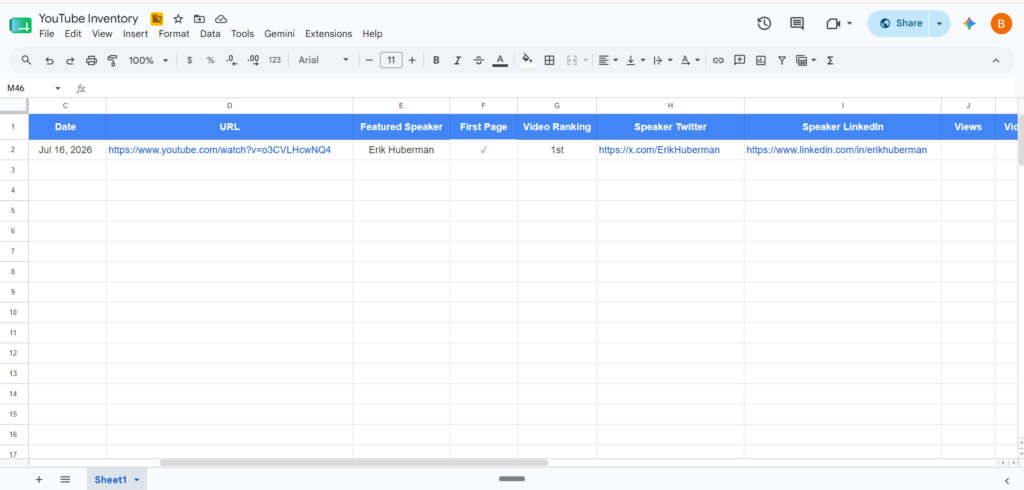
Locate the featured speaker’s LinkedIn and Twitter/X accounts.

Check the video description first, then Google their name with their company name in quotes for more specific results.

Verify you have the correct person before recording the URLs. If no account exists, record “n/a.”
Step 5: Record view count and duration
Copy the video’s view count and duration from the YouTube video page.
For Shorts, make sure you are viewing the “watch?v=” version to see accurate counts.

Step 6: Get the word count from the transcript
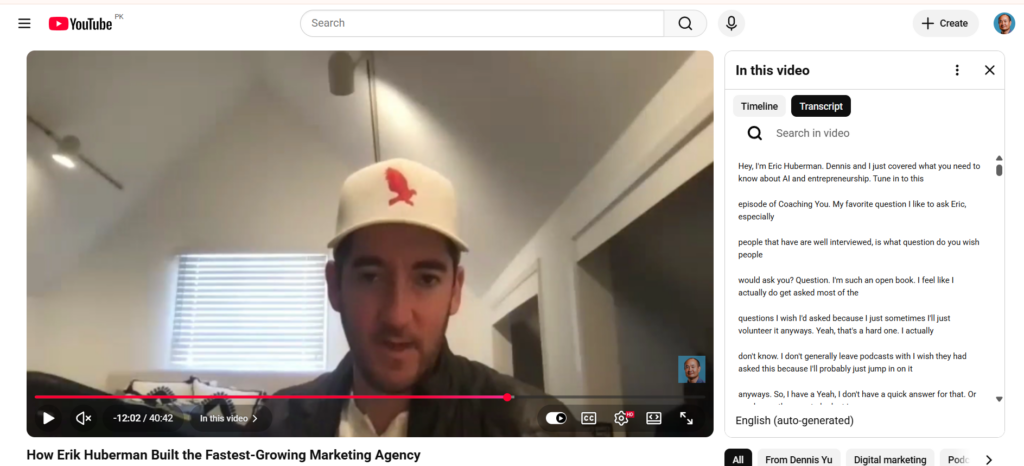
Pull the transcript from the YouTube video page.

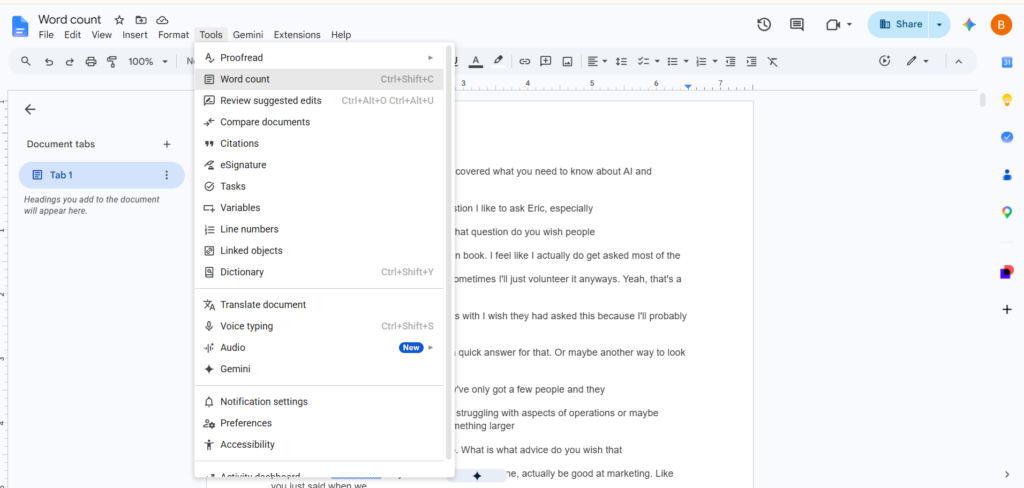
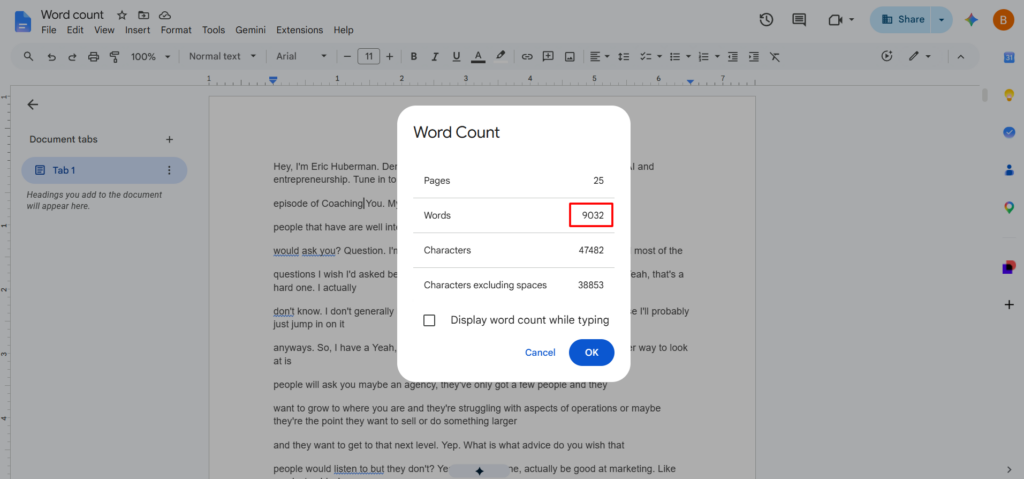
Remove timestamps and get the word count. Record this number in the inventory.



Step 7: Map entities
This is where most people stop and it is where most of the value lives.
As you inventory each video, tag the entities associated with it.
For people, record the speaker name, their personal brand site, company, social profiles, Knowledge Panel status, and Grokipedia page.
For companies, record the company name and website.
For topics, record the service category and geographic relevance like city or DMA.
For relationships, record who interviews whom and which companies are connected. Google triangulates between sources to tease out facts. When you repurpose content, you are not blasting the same information everywhere. You are creating corroborating information across entity objects to teach Google and AI systems about you.
Flag positive mentions. Quotes, endorsements, praise from guests or hosts.
Flag Greatest Hits candidates. Top performers that belong in the 3×3 grid and deserve ongoing promotion.
Step 8: Complete the summary tab
After inventorying all videos, update the Summary tab with the analysis date, total number of YouTube videos, total channel views, total duration, and total words. Verify that the formulas capture all populated cells. Calculate your time to completion, time per entry, and cost per entry.
What happens after inventory
Inventory is the first stage. What follows is where the value compounds.
Repurpose
Turn top videos into articles. Embed the YouTube video in the article and update the YouTube description with the article link.
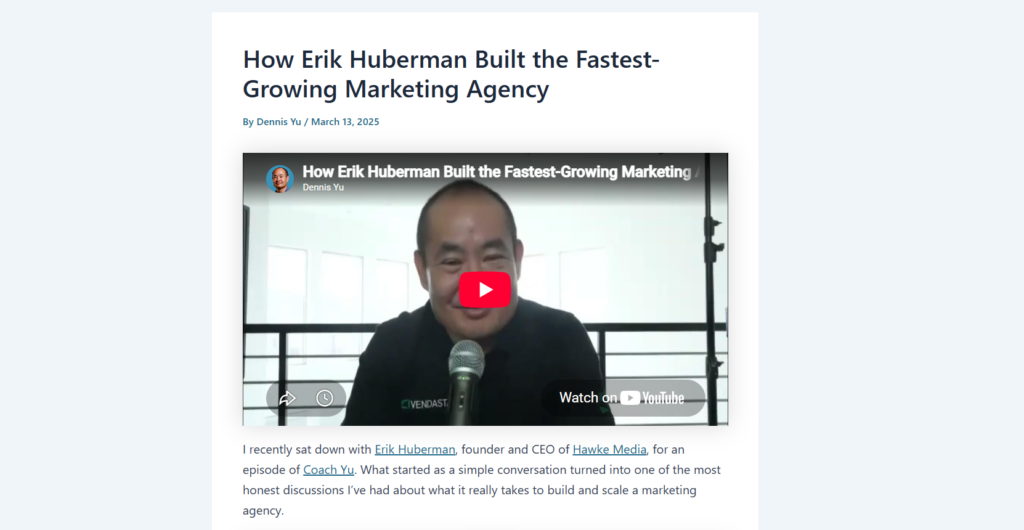
This creates bidirectional entity signals between both objects. We have article guidelines you are welcome to use.
Apply schema markup for people and companies mentioned in each video. Create or update Grokipedia pages for speakers and companies. Distribute articles across social channels.

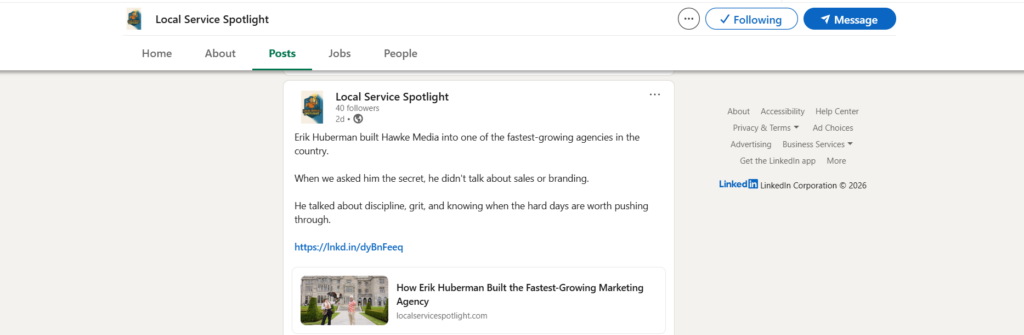
Anyone who has a podcast or YouTube channel should be doing this. After all, is it not embarrassing to interview an industry leader and have 5 views on that episode?
Promote
Run Dollar a Day ads to boost winning content. Share the article, not the YouTube link, across social platforms for stronger SEO signals.
Optimize
Apply MAA to content performance. Amplify what is working and kill the waste. Update the inventory with new performance data regularly.
Most people are so busy trying to keep up with producing content that they never evaluate performance, troubleshoot why, and optimize their winners.
The 4 stage Content Factory is not about producing as much content as possible. It is about focusing on what is working and getting more out of existing winners.
Verification checklist
☑ All required columns are present and populated where information is available.
☑ All featured speakers are identified with entity data including personal brand site, socials, and Knowledge Panel status.
☑ All videos including Shorts are in the inventory.
☑ Positive mentions and Greatest Hits candidates are flagged.
☑ Entity relationships are mapped connecting people, companies, topics, and geography.
☑ Summary tab is complete with all cells updated.
Originally published .
Dennis Yu
Dennis Yu is the CEO of Local Service Spotlight, a platform that amplifies the reputations of contractors and local service businesses using the Content Factory process. He is a former search engine engineer who has spent a billion dollars on Google and Facebook ads for Nike, Quiznos, Ashley Furniture, Red Bull, State Farm, and other brands.
Dennis has achieved 25% of his goal of creating a million digital marketing jobs by partnering with universities, professional organizations, and agencies. Through Local Service Spotlight, he teaches the Dollar a Day strategy and Content Factory training to help local service businesses enhance their existing local reputation and make the phone ring.
Dennis coaches young adult agency owners serving plumbers, AC technicians, landscapers, roofers, electricians, and believes there should be a standard in measuring local marketing efforts, much like doctors and plumbers must be certified. He has appeared on 353 podcasts with 619 credited episodes — see the full list of his podcast appearances.