
 by
by

If you manage client websites, as an SEO consultant, digital marketer, or agency owner, Google Search Console (GSC) is one of your most essential tools.
It confirms Google is properly indexing a site, flags technical issues early, and gives you the hard data clients actually care about.
Before you spend a dime on ads or backlinks, you need visibility into what Google already sees.
GSC shows:
- Which pages are indexed.

- Search queries driving traffic.
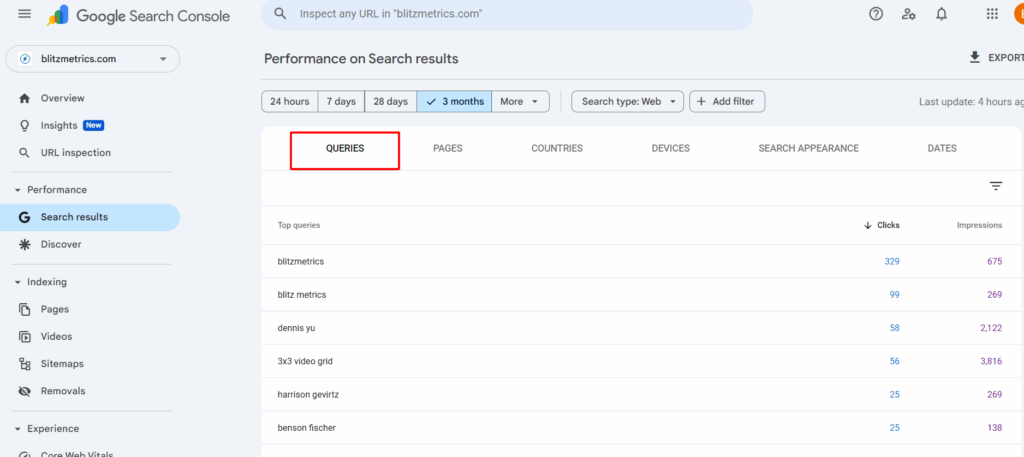
- Mobile and Core Web Vitals performance.

- Manual actions or security issues.
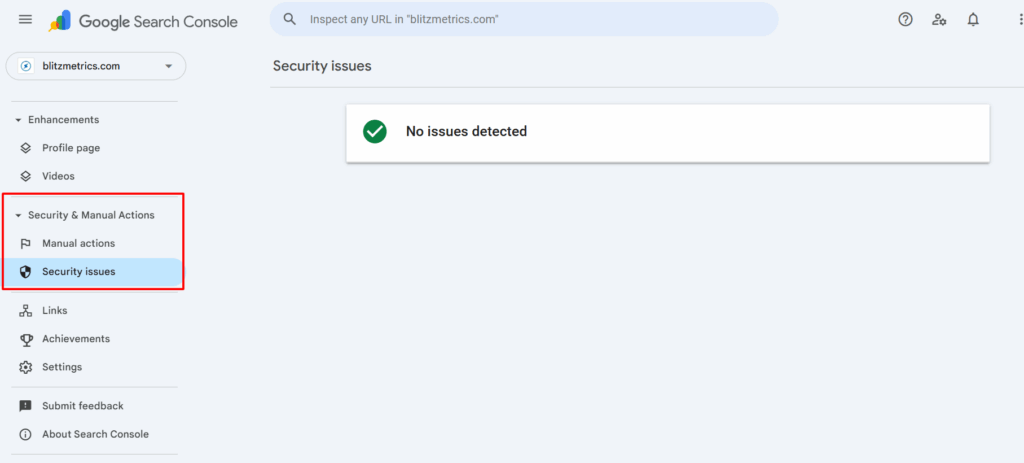
If you don’t have this data, you’re flying blind, and so is your client.
Task checklist
Information needed:
- Client’s WordPress admin login.
- Client’s Gmail address (to grant them access).
- Our shared access email: access@yourcontentfactory.com
Tools required:
- Google Search Console.
- WordPress Admin Panel.
- “Code Snippets” or “Insert Headers and Footers” plugin.
Step-by-step guide
Step 1: Log into GSC
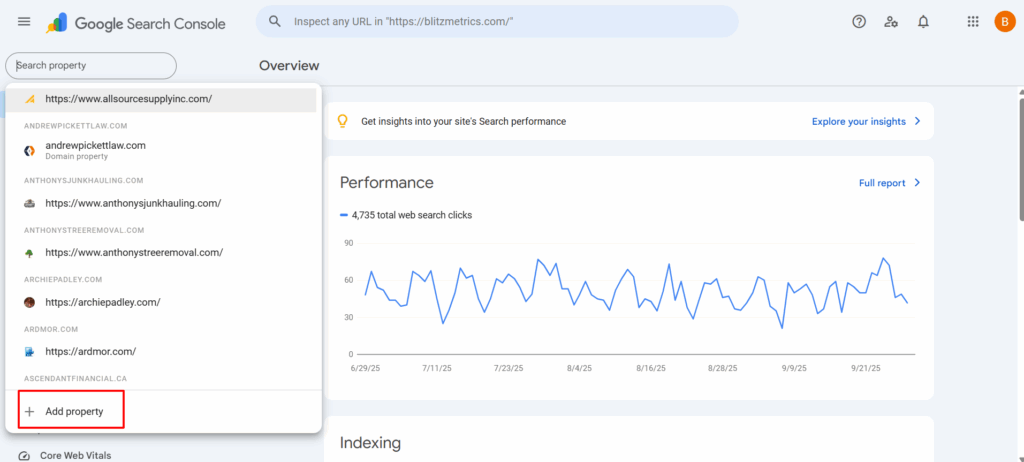
Use our shared account (access@yourcontentfactory.com) to log in to Google Search Console.
Click Add Property.
Step 2: Choose URL prefix
Select the URL Prefix option.
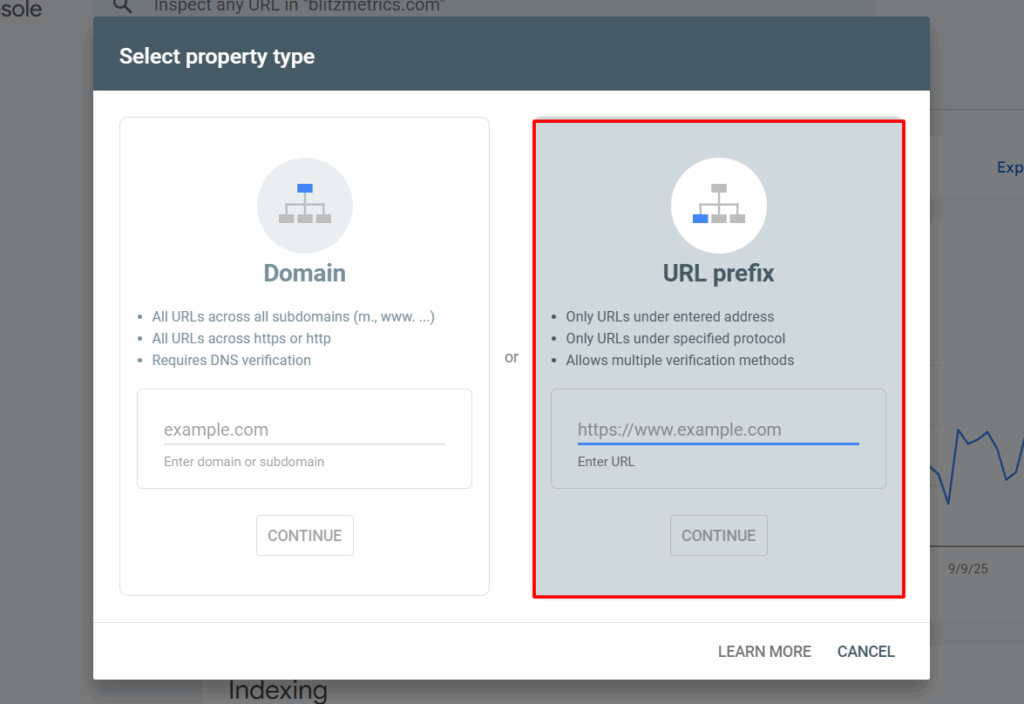
Enter the full URL of the site (for example, https://clientdomain.com) and click Continue.
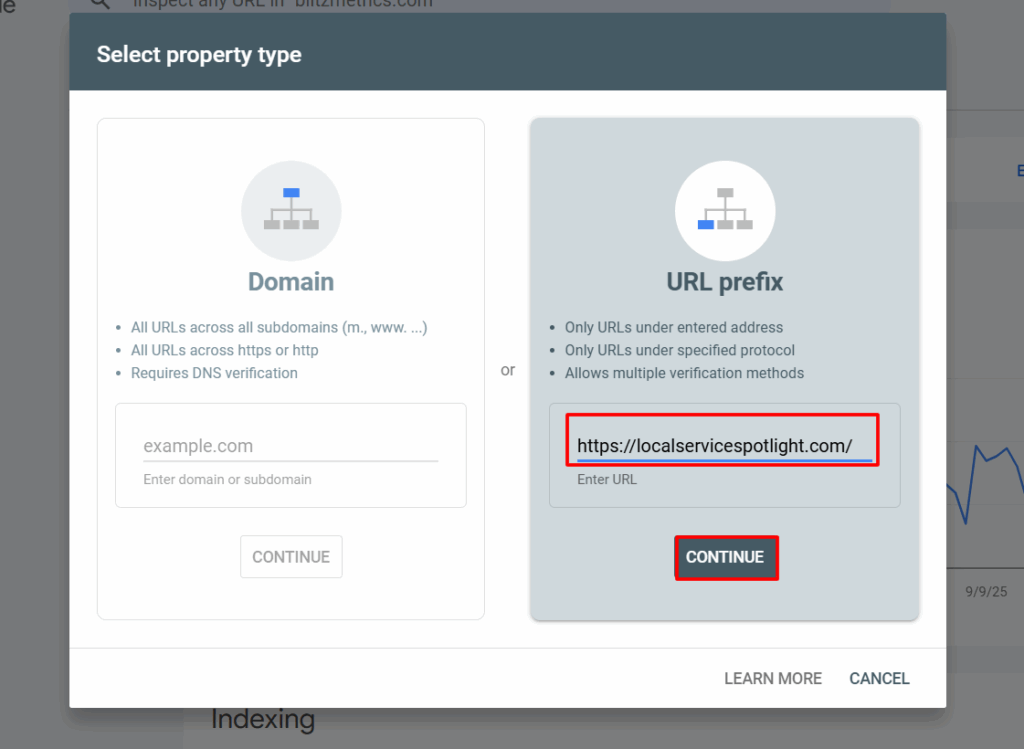
We use URL Prefix instead of Domain verification because it’s quicker and offers multiple methods of verification.
Step 3: Verify ownership with HTML tag
Search Console will provide a meta tag for verification.
It looks like this:
<meta name=”google-site-verification” content=”XXXXXXXXXXXX” />
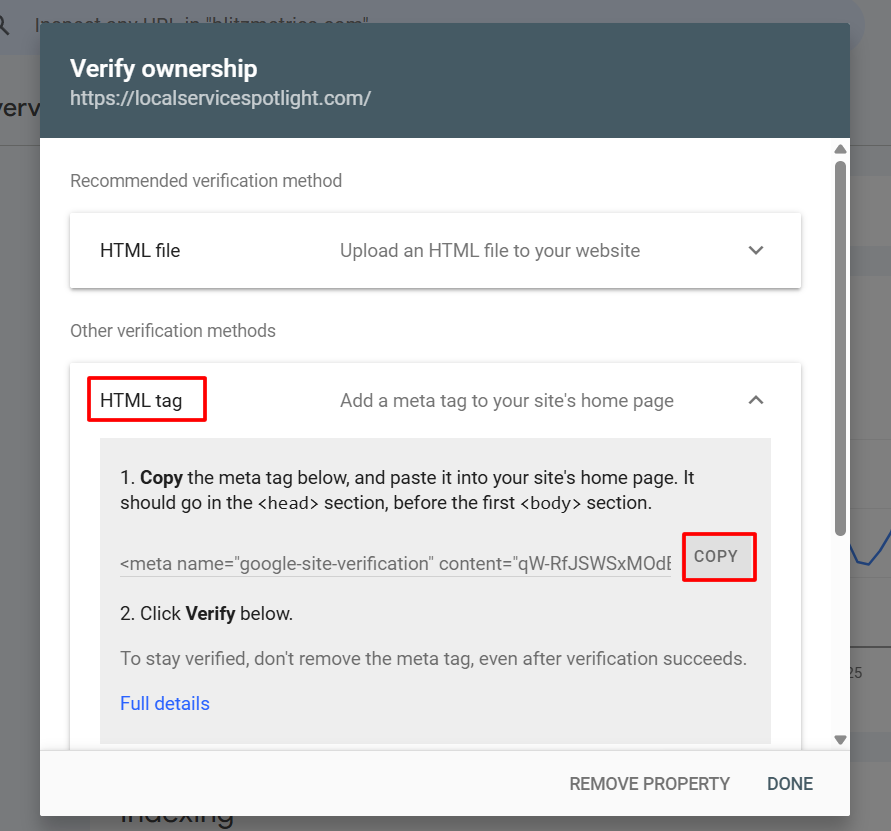
Copy this tag.
In WordPress, go to the “Insert Headers and Footers” or “Code Snippets” plugin and paste it into the <head> section of the site.
Save changes.

Then return to GSC and click Verify.
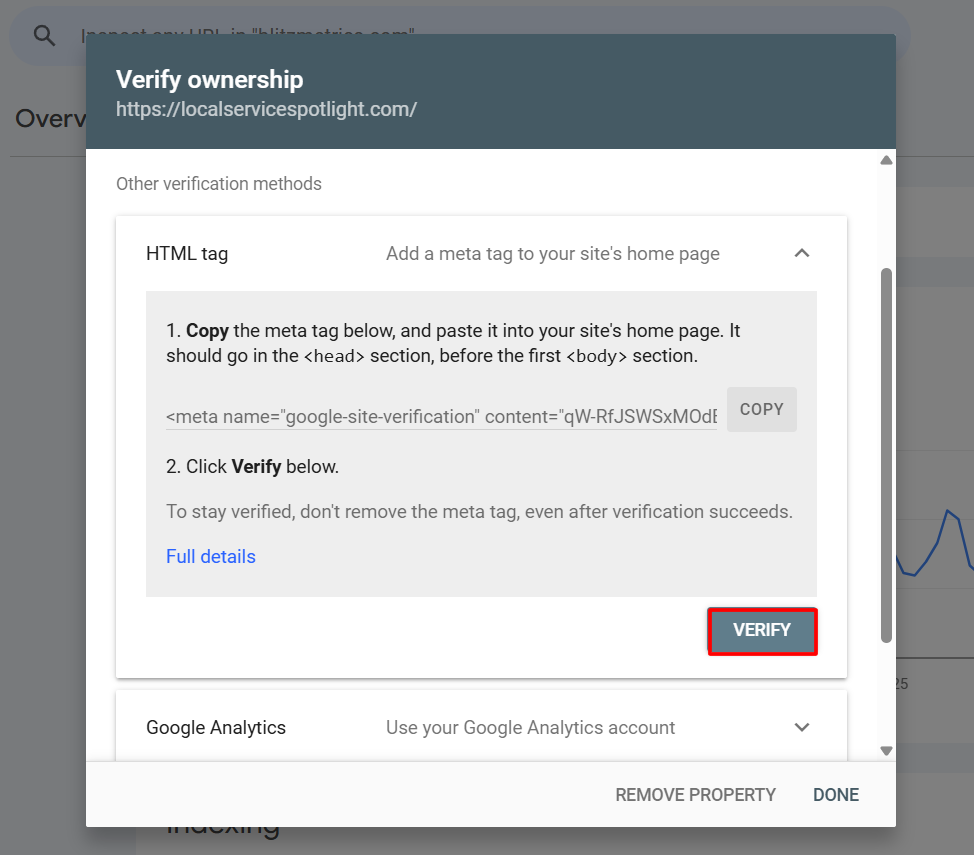
If done correctly, ownership will be confirmed instantly.
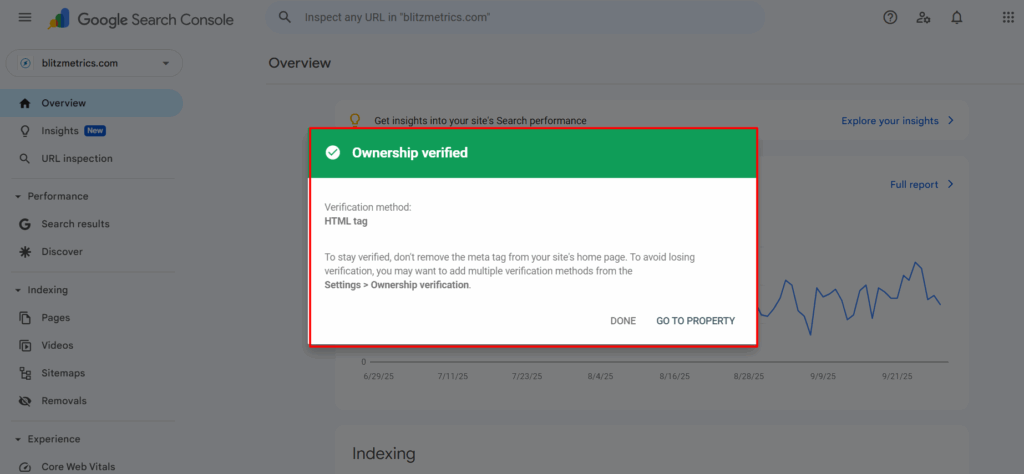
Step 4: Grant client access
Once verified, go to Settings → Users and Permissions → Add User.
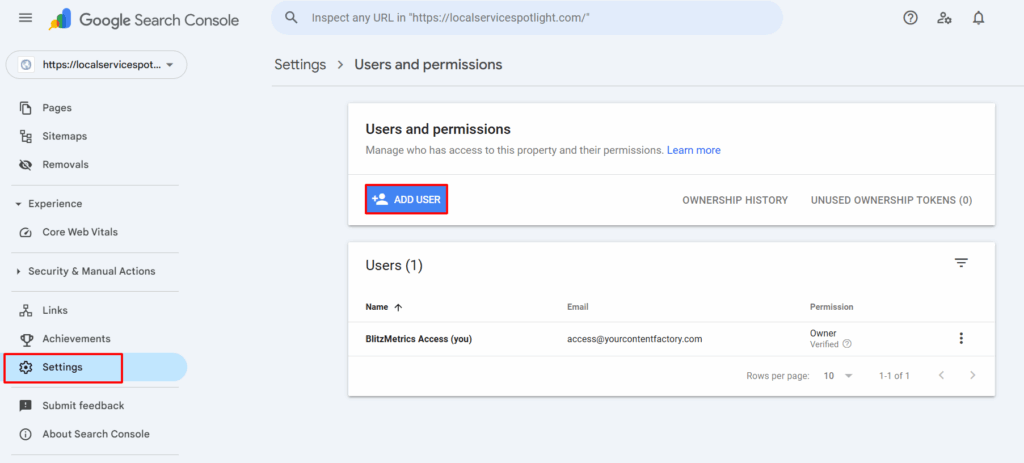
Enter the client’s Gmail address and grant them Full Access.
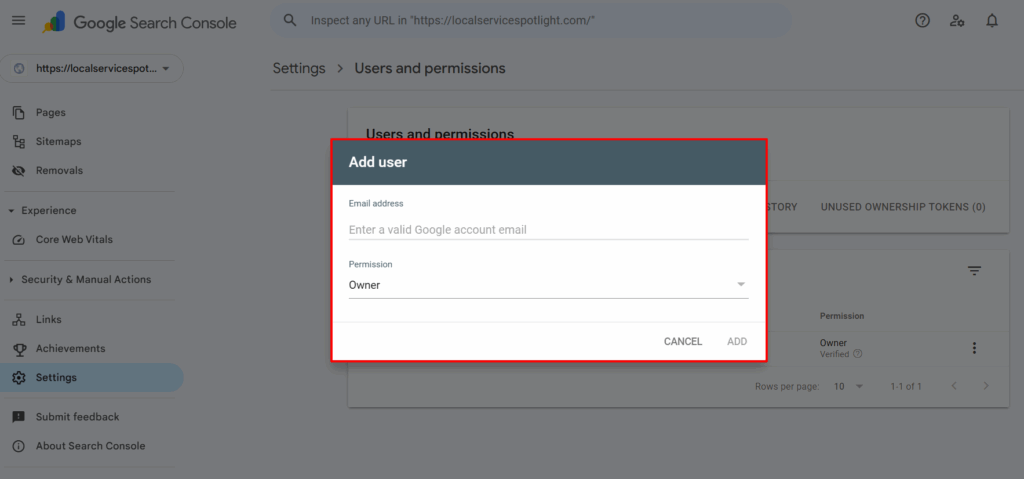
This allows them to manage their property while keeping our admin role intact.
Step 5: Confirm setup
Check that the property now appears in both our account and the client’s account.
Leave the verification tag in place to ensure ownership remains valid.
Send the client a confirmation email (include a screenshot for clarity).
Tips and common mistakes
- Never remove the tag. Deleting the verification tag breaks ownership.
- Match the exact URL. Include https:// and www if applicable.
- Alternative methods: If you can’t access WordPress, verify using DNS TXT record, Google Analytics, or Tag Manager.
Verification checklist
Before closing out the task, confirm:
- Property added under access@yourcontentfactory.com
- Verification succeeded via HTML tag.
- Client granted full access.
- Verification tag remains active in WordPress.
- Client received confirmation email.
Outcome
Once setup is complete, you and your client will both have access to critical search insights from day one, letting you make smart SEO decisions instead of guessing.
This exact process is part of our AI Builder program, where we train young adult to implement SEO systems that actually move the needle.
All our training, templates, and live workshops are available at Local Service Spotlight.
This article connects to BlitzMetrics processes including SEO audit, Digital Plumbing, SEO Tree. Each of these concepts has a definitive article that explains the full framework.
Originally published .
Dennis Yu
Dennis Yu is the CEO of Local Service Spotlight, a platform that amplifies the reputations of contractors and local service businesses using the Content Factory process. He is a former search engine engineer who has spent a billion dollars on Google and Facebook ads for Nike, Quiznos, Ashley Furniture, Red Bull, State Farm, and other brands.
Dennis has achieved 25% of his goal of creating a million digital marketing jobs by partnering with universities, professional organizations, and agencies. Through Local Service Spotlight, he teaches the Dollar a Day strategy and Content Factory training to help local service businesses enhance their existing local reputation and make the phone ring.
Dennis coaches young adult agency owners serving plumbers, AC technicians, landscapers, roofers, electricians, and believes there should be a standard in measuring local marketing efforts, much like doctors and plumbers must be certified. He has appeared on 353 podcasts with 619 credited episodes — see the full list of his podcast appearances.