
 by
by
- 1TL;DR — Key Takeaways
- 2Before You Claim: The One-Page Checklist
- 3Step 1: Find Your Panel and Copy the KGMID
You’ve done the hard work. You’ve built your personal brand site, claimed your social profiles, and started generating real mentions. Now there’s a Knowledge Panel floating in Google’s system with your name on it — but you don’t own it yet.
TL;DR — Key Takeaways
- Claiming a Knowledge Panel means verifying to Google that you are the person or entity the panel represents — it’s the gate between “Google found you” and “you control your own story.”
- You can only claim a panel that already exists; if you don’t have one yet, start with our 7-step trigger guide first.
- The flow: find your KGMID, click “Claim this Knowledge Panel,” write a clear explanation, upload your selfie+ID and five logged-in social/website screenshots, and wait 2–7 days for Google’s decision.
- The biggest reasons claims fail: a weak Entity Home, inconsistent names across profiles, and vague explanations that read as promotional rather than factual.
- Once claimed, you can submit feedback, suggest edits, and start shaping what Google shows — but the underlying confidence score still determines how quickly edits stick.
Not sure how Knowledge Panels are generated in the first place? Start with our Google Knowledge Graph overview for the underlying context.
Claiming your Google Knowledge Panel is how you take control. It’s how you go from “Google knows I exist” to “I manage how Google presents me to the world.” And unlike social media verification, which anyone can buy for a few dollars a month, this is earned through real proof.
If you don’t have a Knowledge Panel yet, start with our 7-step guide to triggering one. This article is for people who already have a panel (or one hiding in the API) and are ready to claim it.
Before You Claim: The One-Page Checklist
Before you click anything, assemble your materials. This reduces rejection risk and gives you an audit trail. Here’s what you need ready (from our book, How to Get a Google Knowledge Panel):
- Google (Gmail) account — the one you’ll manage the panel from
- Panel link + your KGMID — find this using our Knowledge Graph Explorer
- Government-issued ID + a clear selfie holding it — passport works best (Google prefers it)
- Your official website URL (Entity Home)
- Five web profile URLs — pick five from: LinkedIn, Facebook, Instagram, YouTube, TikTok, X/Twitter, and your personal website. Google’s form lets you add fewer, but five is what we always submit and what we recommend.
- Logged-in screenshots of each social account — homepage shots don’t count, you must show you’re logged in as admin
- A written explanation of why you’re claiming the panel — this is where most people get rejected
Save everything in a Google Drive folder labeled with the submission date. Google does NOT provide a copy of your request. If you get rejected, you’ll need to know exactly what you submitted.
Step 1: Find Your Panel and Copy the KGMID
Go to our Knowledge Graph Explorer and search your name. This taps into Google’s Cloud Enterprise Knowledge Graph API and shows your Knowledge Graph Machine ID (KGMID) and confidence score.
For example, a confidence score of 24 means Google kinda knows who you are but isn’t confident enough to display the panel publicly yet. Even so, if the panel exists in the API, that’s all you need to start the claim process.
Sometimes you’ll find more than one KGMID associated with your name, each with a different confidence score. That means Google has created duplicate entities for you. (If that happens, see our guide to merging Knowledge Panels.)
Copy your panel link and KGMID. Save both.
Step 2: Click “Claim This Knowledge Panel”
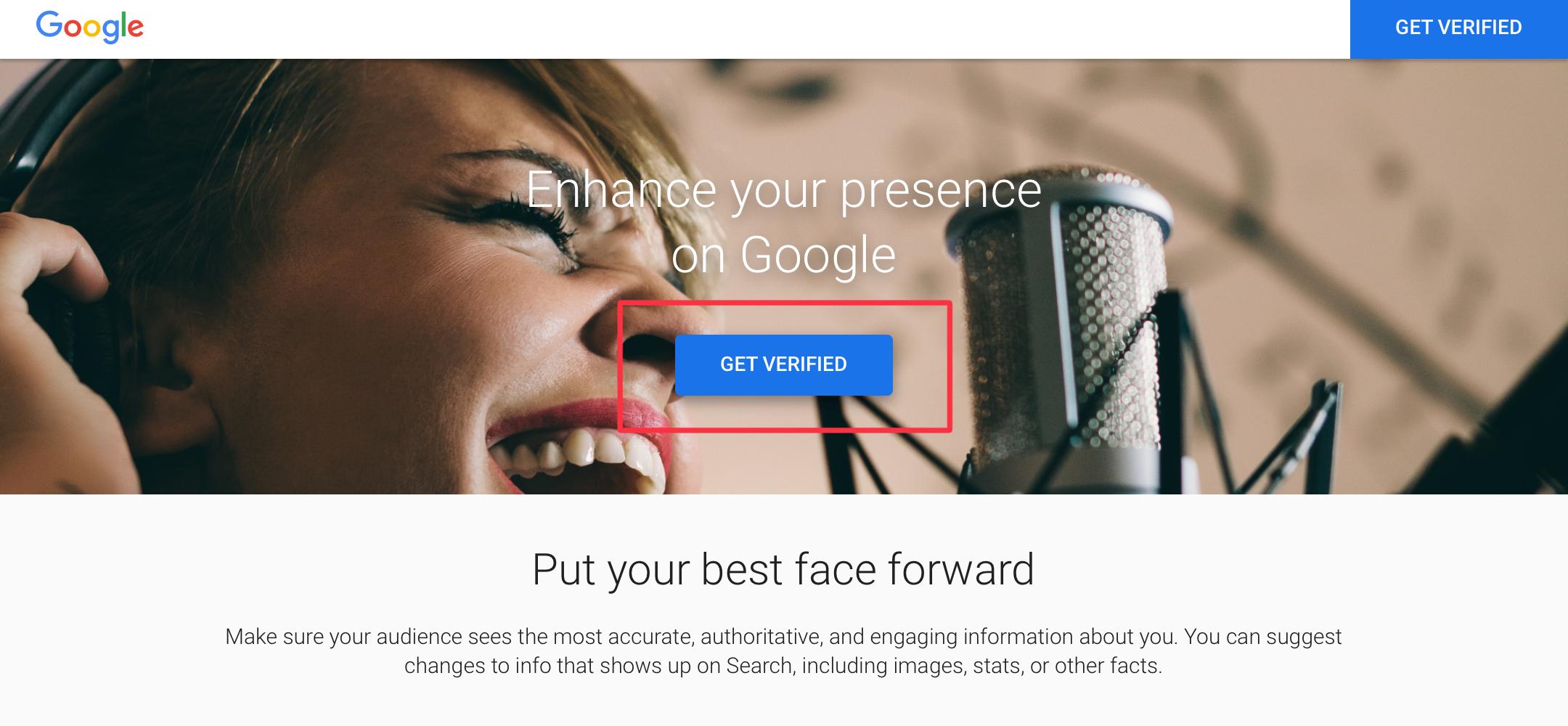
Search your name on Google. Find the three dots in the top-right of your Knowledge Panel and click “Claim this knowledge panel.” Then click “GET VERIFIED.”
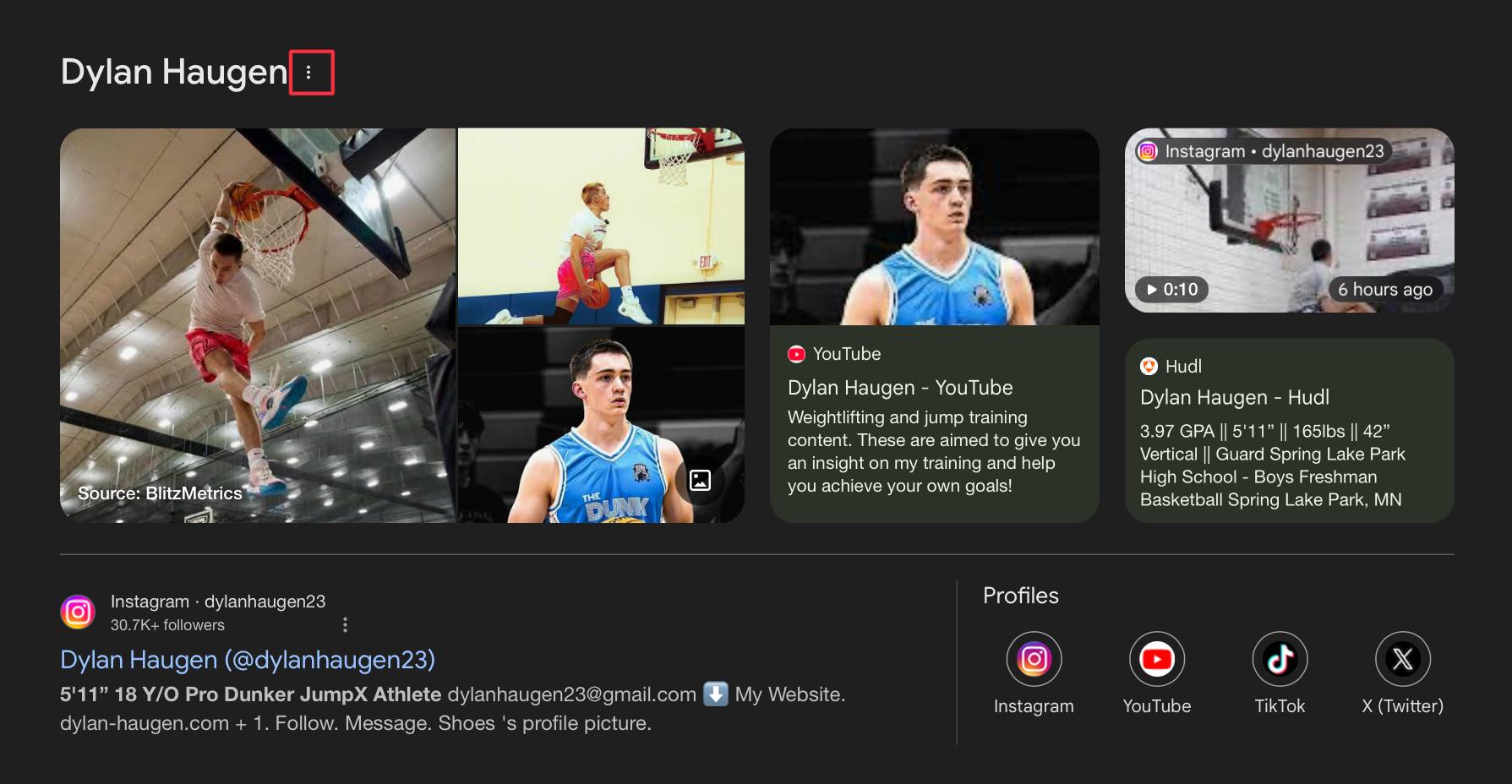
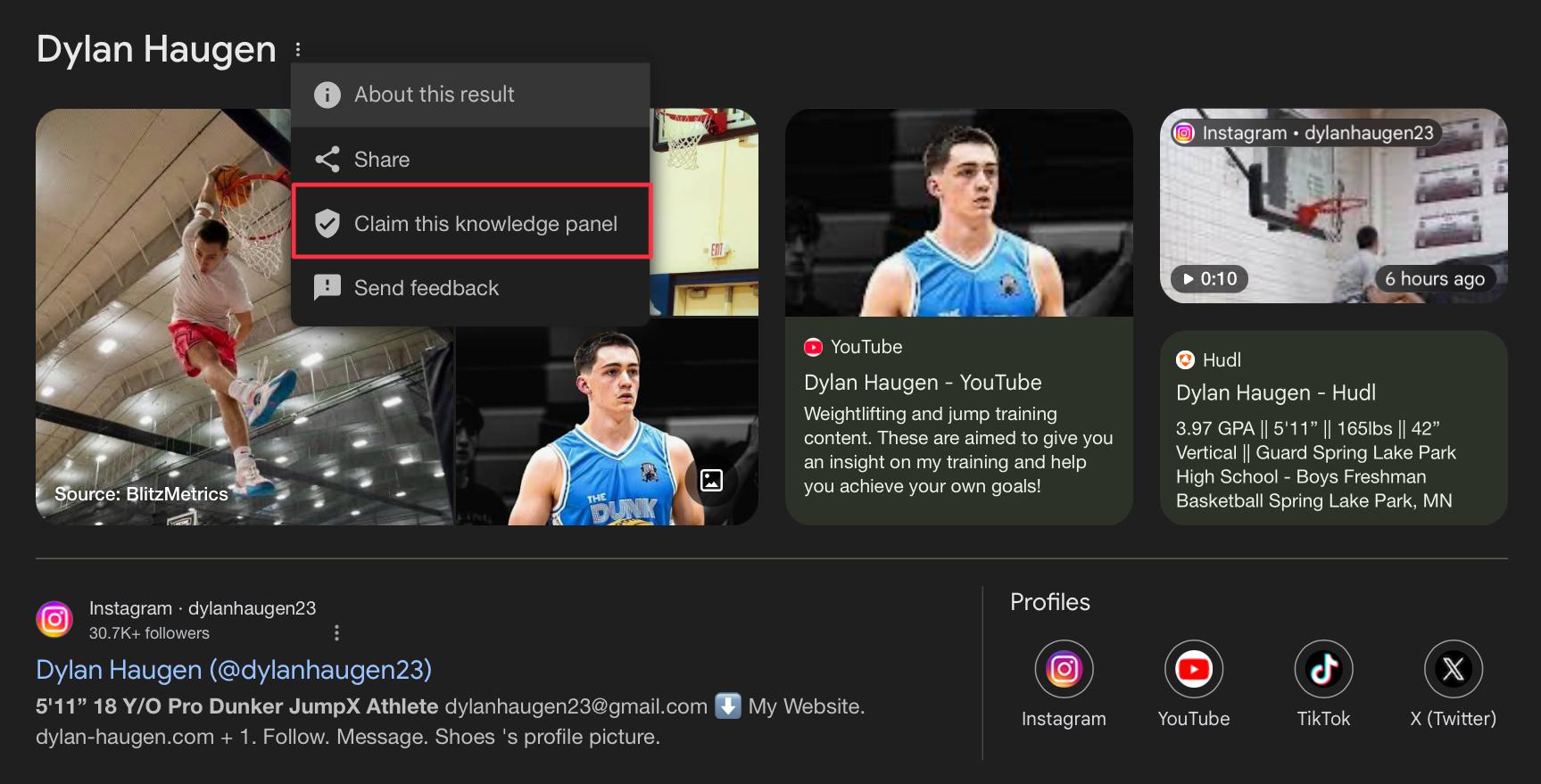
Make sure you’re signed into the Gmail account that you personally own and will keep long-term — this is the account that will control the Knowledge Panel going forward. Use a personal Gmail rather than a work email if you can; if you ever leave a company or lose access to a work account, you’d lose the ability to manage your panel along with it.
Once you click GET VERIFIED on the “Enhance your presence on Google” screen, Google takes you straight to the claim form. There’s no separate Search Console step, no domain verification, no DNS records — just the form covered in Step 3.
Step 3: Write a Killer Explanation (Don’t Skip This)
This is where most people self-disqualify. The “Tell us why you’re claiming this panel” box is not a formality — it’s your pitch to a Google reviewer.
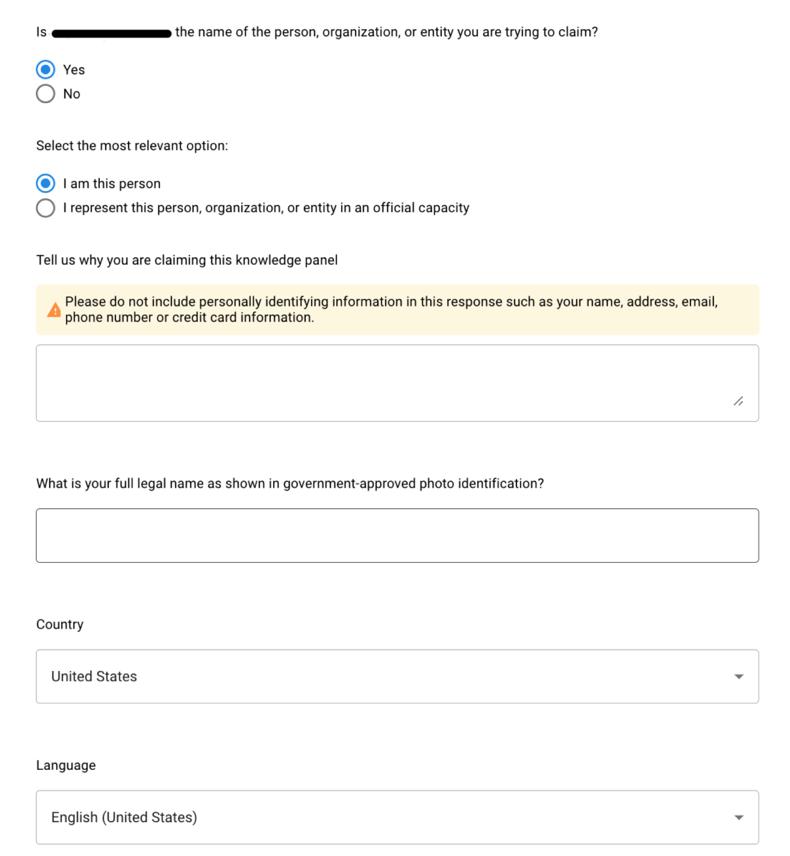
What gets rejected: “I want to claim this panel because it’s mine.”
What gets approved: A detailed explanation that includes who you are, what the panel contains, your affiliations, and why verification matters. Dennis Yu’s trick: use ChatGPT with a custom prompt that explains who the person is, what their panel includes, and why it should be verified. Include affiliations, academy memberships, certifications, podcast appearances, and published work.
A strong explanation might pull together affiliations with notable people in your field, certifications, podcast appearances, academy or organization memberships, and media features — every concrete detail that gives a reviewer something verifiable to work with. The more corroborating proof you bake in, the faster the panel tends to clear review.
What to actually write
Google reviewers want proof that you’re a real, public person or entity worth recognizing — not a marketing pitch. The strongest explanations follow Google’s own E-E-A-T framework (Experience, Expertise, Authoritativeness, Trust) and read like a third-party bio rather than self-promotion.
A reliable structure to follow:
- Open with who you are and what you’re best known for. One sentence. Name, profession or field, primary title or project. Example: “I am [Full Name], a [profession/field], best known as [primary title or project].”
- List notable achievements, milestones, or competition results. Specific numbers and named events beat adjectives. Three contest wins beats “well-known competitor.”
- Name the brands, sponsors, or partners you’ve worked with. If a reviewer can search “[your name] + [brand]” and find a result, you’ve just handed them corroborating proof.
- Name the organizations, programs, or groups you’re part of. Co-founder roles, coaching positions, advisory boards, academy memberships, certifications, professional associations.
- Cite specific media features. News outlets, podcasts you’ve appeared on, articles or interviews about you, bylined content you’ve published. Use the actual outlet names.
- Explain why a verified Knowledge Panel matters for your work. Tie it to credibility with sponsors, speaking invitations, coaching opportunities, client trust — whatever genuinely applies. Avoid “I just want a panel.”
- Close with your social presence. A line like: “I have a strong and active presence across major social media platforms including Instagram, TikTok, X, YouTube, Facebook, and LinkedIn, and would like to ensure all of these are linked properly to my Knowledge Panel.” This sets up Step 4 cleanly.
The ChatGPT dictation shortcut
Most people freeze when staring at a blank box. The fastest way through it: open ChatGPT in voice/dictation mode and just talk through who you are. Say your name, what you do, the brands you’ve worked with, who’s featured you, the organizations you’re part of, and why a Knowledge Panel matters for your work. Then ask ChatGPT to organize it into the seven-point structure above. Paste the result into the form, edit anything that’s overstated, and you’re done.
Common mistakes that get rejected
- Generic intent statements. “I want a Knowledge Panel” or “this is my page” gives the reviewer nothing to verify against.
- Unsupported claims. If you say “internationally recognized,” a reviewer should be able to search and confirm it. If they can’t, it hurts more than it helps.
- Just listing platforms. Naming your social handles isn’t a claim explanation — it’s a Step 4 task. Step 3 is the credibility argument.
- Promotional tone. Write like a third party describing you in a press bio, not like marketing copy. Reviewers are pattern-matched to reject the latter.
Step 4: Upload Your ID and Proof of Ownership
For yourself:
- Your name, organization, or entity name
- Your full legal name as shown on government-issued ID
- Your country and language
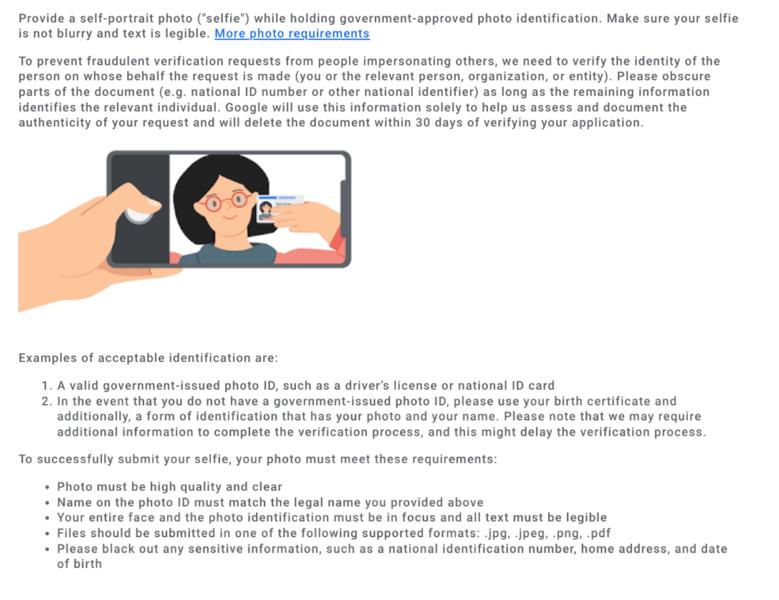
- A clear selfie holding your government ID (passport preferred — JPEG format, not HEIC)
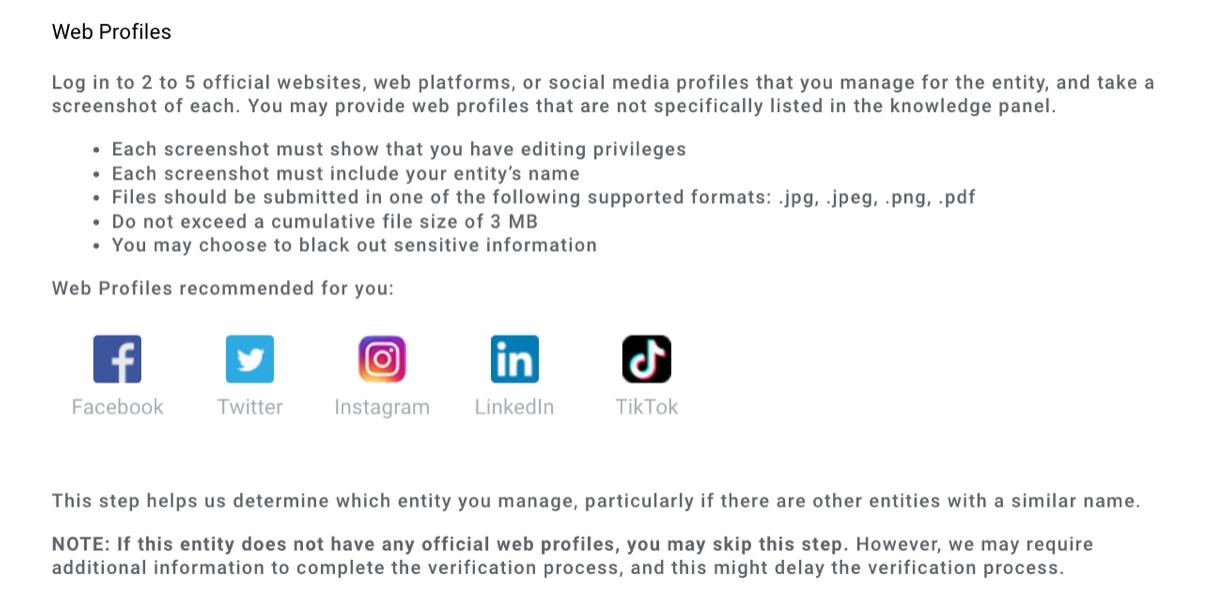
- Web profiles: your website URL and social media links
- Screenshots proving you’re logged into each social account as admin
For another entity (if you’re claiming on someone’s behalf):
- Proof that you represent the entity in an official capacity
- A business document explaining your relationship
- The entity’s website and social profile URLs (not yours)
Critical: Screenshots must show you’re logged in. A homepage screenshot of your LinkedIn doesn’t prove anything. You need the admin view, the dashboard, the logged-in state.
The selfie + ID
This part is exactly what it sounds like — a selfie of you holding your government photo ID next to your face. A passport works best because Google explicitly prefers it, but a driver’s license or national ID is fine. Accepted file types: .jpg, .jpeg, .png, .pdf.
- Your face and the ID must both be fully visible and in focus.
- The text on the ID must be readable — good lighting, no glare, and don’t mirror or flip the image.
- The name on the ID must match the legal name you type into the form. If you go by a different name in business or online, you still use your government name here. Google does not put this on your panel — it’s only used to verify identity.
- You’re allowed to black out sensitive details (national ID number, home address, date of birth) as long as your name, photo, and document type stay visible. Google states it deletes the document within ~30 days after verification.
The five web profiles
For each of the five profiles, you provide two things: the URL, and a screenshot proving you control that account. The screenshot is where most people lose points — Google needs to see clear evidence that you’re logged in and have edit/admin access, not just that the profile exists.
What “proof of admin access” looks like on each platform:
- Personal website: Your WordPress (or other CMS) dashboard with your site name visible, or your live site with the admin toolbar showing at the top.
- LinkedIn: Your profile while logged in, with the Edit controls or “Me” menu visible.
- YouTube: The YouTube Studio dashboard.
- Instagram: Your profile while logged in, showing the Edit Profile button.
- Facebook Page: The Page Professional Dashboard, or Page settings, or the Edit cover photo controls.
- X/Twitter: Account settings or your profile while logged in with the edit controls visible.
- TikTok: Your profile while logged in with edit controls visible.
Screenshot tips
- Capture the full browser window with the URL bar in view. Don’t crop down to just the profile — Google wants to see the URL.
- Show your user avatar, account initial, or “Edit”/”Admin” indicators. Anything that signals you’re signed in.
- Don’t crop away the elements that prove access. If the only thing visible is the public profile, it’s not proof.
- Full-screen is fine. Going into full-screen mode and taking a clean screenshot works perfectly — no editing required.
- Don’t add annotations or arrows. Clean screenshots only.
If you have to choose which five profiles to submit, prioritize the ones with the strongest public footprint and clearest admin controls — typically your website plus your four most-active social accounts.
Step 5: Submit and Wait
Upload everything, agree to the terms, and hit submit. Google officially says verification can take up to 72 hours, but in our experience decisions usually come back within 24–48 hours when the submission is clean.
Real Case Studies: What Claiming Looks Like in Practice
Scott Shagory — Claimed in 2 Days
Scott is a professional speaker, author, business strategist, and branding expert. Despite growing his brand across platforms and appearing on podcasts, he didn’t have that central piece of credibility on Google. Once he had his materials in place — a clear ID selfie, logged-in screenshots, and a detailed explanation tying together his speaking work, books, and podcast appearances — the claim went through cleanly on the first try.
Parisa Rose — 14 People With the Same Name
When Dennis searched “Parisa Rose,” Google returned results for at least 14 different people with the same name. Only one or two matched the real Parisa. Using the Knowledge Graph Explorer, Dennis located her unique entity ID (KGMID) — the anchor Google uses to connect all the right information to the right person. The key was tying consistent, verifiable data back to that specific ID.
Darby Rollins — Had the Panel, Never Claimed It
Darby had published books, hosted podcasts, and interviewed experts — but never claimed his panel. That’s like having a driver’s license you’ve never activated. Once Dennis pointed this out during the Gen AI University Podcast, Darby claimed his panel and it’s now fully verified. See more Knowledge Panel examples here.
What If You Get Rejected?
Rejections happen. The most common reasons:
- Weak explanation — Google wants verifiable facts, not opinions. Say “I spoke at Social Media Marketing World 2024” with a link, not “I’m a leading expert.”
- Blurry ID photo — Make sure text is legible. Use JPEG, not HEIC.
- Missing proof of ownership — You need logged-in screenshots, not homepage shots.
- Inconsistent identity — If your name, title, or photo varies across platforms, fix it first.
- No citations backing claims — Every statement in your explanation should link to a verifiable source.
If rejected, review what you submitted (this is why you saved everything), fix the gaps, and resubmit with stronger supporting material.
After Claiming: What Happens Next
Claiming is just step one. Once verified, you can “Suggest edits” to update descriptions, images, social links, and other details. But the real work is raising your confidence score so the panel shows up consistently and completely.
- Raise your confidence score — Learn the technical signals that strengthen your panel
- Browse real examples — See before-and-after case studies from other clients
- Understand entity SEO — Learn why entities matter for both Google and AI rankings
Want It Done For You?
If you’d rather have an expert handle the entire process — from building your personal brand site to triggering your panel to managing the claim — we offer a full Done-For-You Knowledge Panel Service. Our team builds your site, triggers your Knowledge Panel, and handles all the technical work for you.
Get started with our Done-For-You package here.
Download the Skill File
This article has a companion Claude skill file that automates the process described above. Download it below, rename from .zip to .skill, and install it in Claude to get step-by-step guidance.
Don’t want to claim it yourself? See we can claim and build it for you — we run every step from audit to a live panel, guaranteed.
Originally published .
Dylan Haugen
Dylan Haugen is a professional dunker, content creator, and editor at the Content Factory, where he transforms podcasts and interviews into strategic brand assets. He collaborates with Dennis Yu to support young entrepreneurs and business owners in building their personal brands through education, transparency, and effective content marketing. As the host of the Dunk Talk podcast and a dedicated advocate for establishing dunking as a recognized sport, Dylan combines athletic expertise, storytelling, and digital strategy to help elevate the next generation of creators.