
 by
by
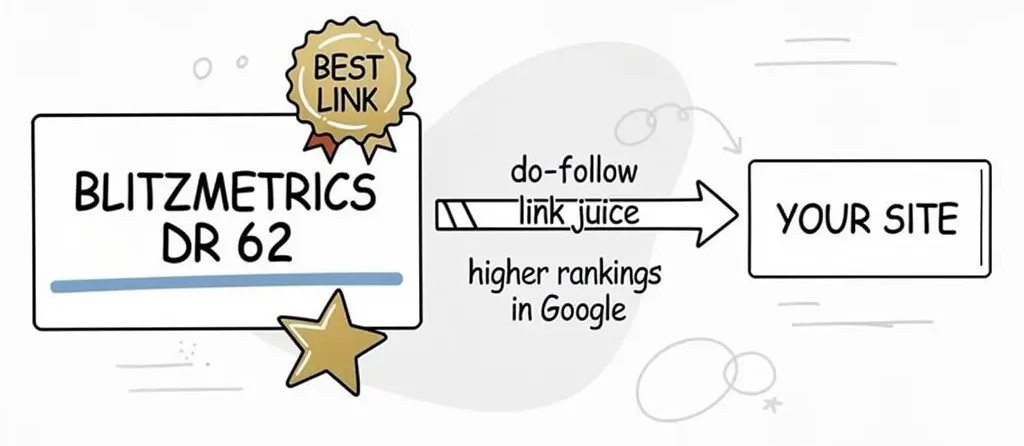
If you’ve read any of our recent articles at BlitzMetrics, you’ve probably noticed the clean, hand-drawn style diagrams we’ve been using. The ones in our You Got Featured article showing how our DR 62 “Best Link” passes do-follow link juice to your site are a good example.
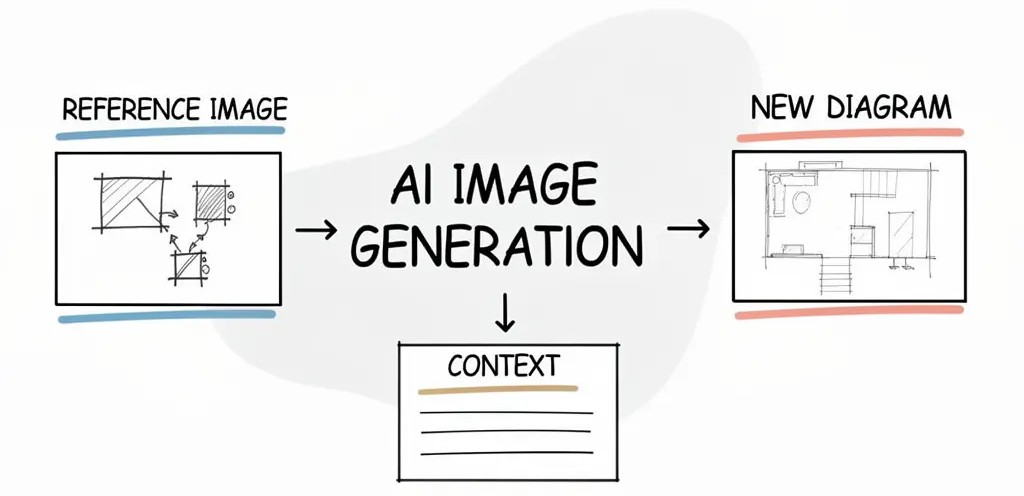
These aren’t made by a graphic designer. My team and I generate them using AI image tools by feeding a reference image and detailed context to get consistent, professional-looking results every time.
Here’s exactly how we do it.
Task checklist
Information that you will need:
- One reference diagram that represents the visual style you want all future diagrams to match.
- The specific text labels, data points, or categories that should appear in the new diagram.
- The layout structure you want, such as triangle, diamond, linear flow, or cycle.
- Any color preferences for underlines, accents, or highlighted sections.
Tools that you will need:
- An AI platform that supports image-to-image generation such as ChatGPT with DALL-E, Claude, Perplexity, or Midjourney.
- Access to upload your reference image alongside your written context.
- A way to download the generated image for use in your article or post.
Start with a reference image
The key to consistency is having one diagram you already like. Ours is a simple strategy framework with boxes connected by arrows, hand-drawn marker-style font, a light gray background blob, and colored underlines.
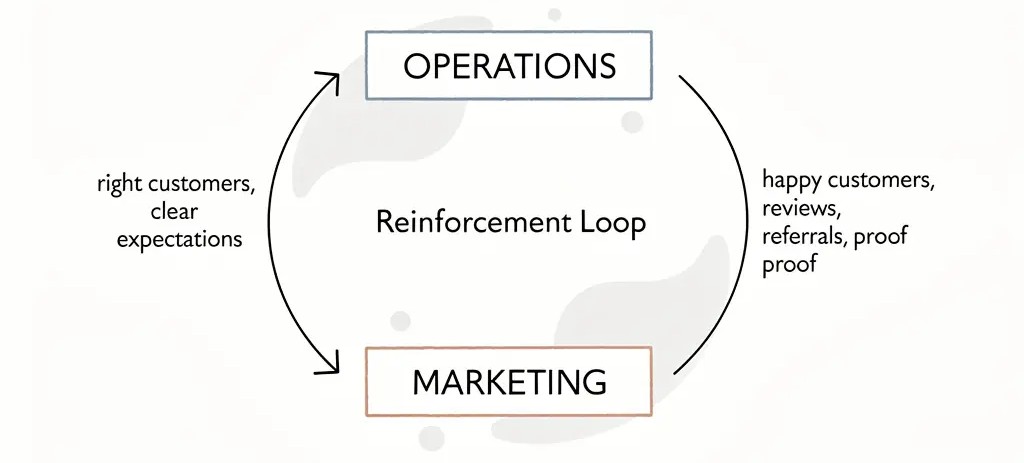
Image we created for The Framework, the CEO of American Airlines Taught Me
This reference image tells the AI “make it look like this.” It becomes your style anchor so every future diagram matches.
Give the AI detailed context
The context you provide is where the magic happens. You need to describe the layout, including how many boxes there are and how they’re arranged, whether that’s a triangle, diamond, or linear flow. You include the exact text labels inside each box. You add style cues like “hand-drawn marker style font” and “clean minimalist” and “white background” and “colored underlines.” And you specify color coding so the AI knows which elements get blue, coral, tan, or green accents.
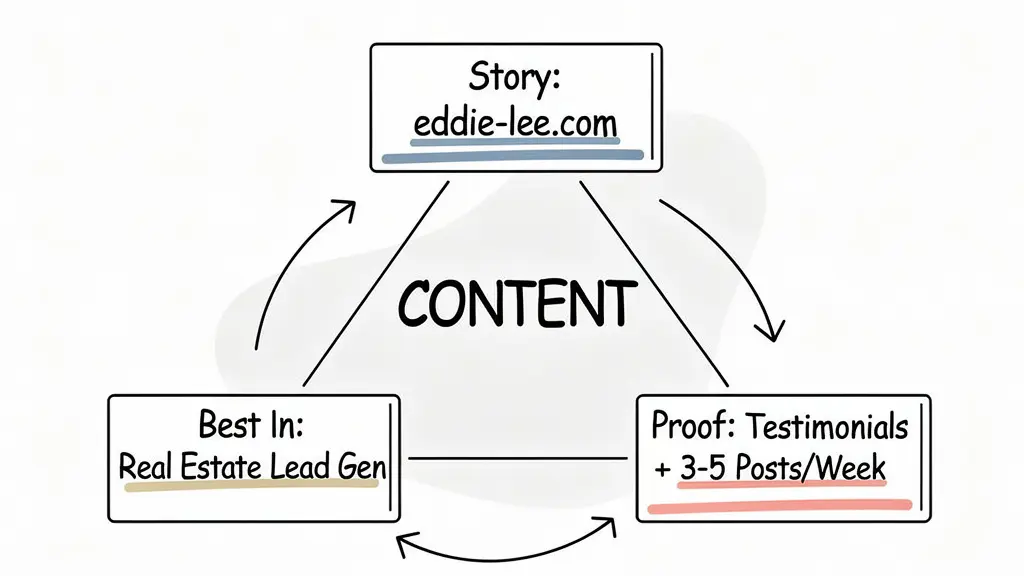
For example, when we needed a Goals-Content-Targeting (GCT) diagram for Eddie Lee of Synergy Marketing Technology, we described three boxes in a triangle with “GOALS” in the center, specific metric labels in each box, and curved arrows connecting them all.
Use image-to-image generation
Instead of generating from scratch, we use image-to-image generation, uploading our reference diagram alongside the context. This anchors the AI to our existing style so every new diagram feels like it belongs in the same family.
Tools that support this include ChatGPT with DALL-E, Claude, Perplexity, Midjourney, and most other AI platforms that accept a reference image plus written context. The key is that you’re not starting from zero. You’re telling the AI “here’s my style, now make a new one with this content.”
Keep it consistent across articles
We reuse the same reference image for every diagram we generate. That’s the secret to making them all look cohesive across dozens of articles and client deliverables.
I have my team use this approach for GCT diagrams in client strategy assessments covering Goals, Content, and Targeting. We use it for Tech Stack diagrams showing a client’s marketing infrastructure.
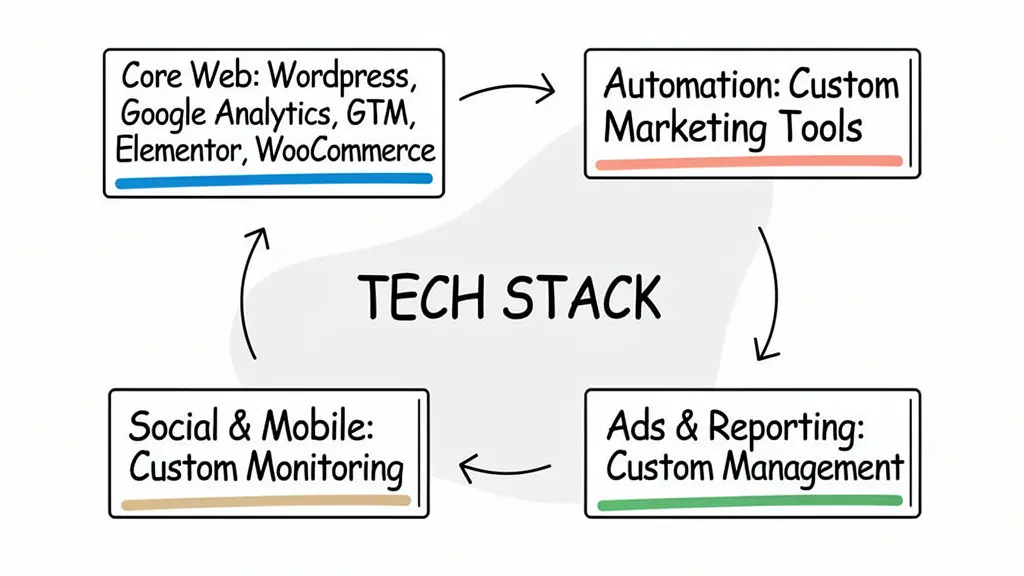
We use it for link building diagrams explaining how DR 62 “Best Links” pass authority to your domain.
The style stays the same. Only the content changes.
Why this matters for SEO
A site might have thousands of backlinks, but only a handful of “Best Links,” which are the ones Ahrefs flags as carrying the most authority. When BlitzMetrics at DR 62 links to your site with a do-follow link, that’s not just another backlink. It’s one of the most valuable links pointing to your domain.
Diagrams like these help explain complex concepts visually, which improves time on page because readers engage longer with visual content. They improve shareability because diagrams get screenshotted and shared. And they improve comprehension because a picture is worth a thousand words of SEO jargon.
Try it yourself
Find or create one diagram you like as your reference style. Describe your new diagram in detail, covering layout, labels, colors, and style. Use an AI image tool with image-to-image generation. Reuse the same reference image every time for consistency.
That’s it. No design skills needed. No Canva templates. Just a clear reference image and good context.
Verification checklist
- Confirm that the generated diagram matches the visual style of your reference image, including font style, layout structure, and background elements.
- Check that all text labels are accurate and spelled correctly since AI can sometimes alter or misspell words,
- Verify the color coding is consistent with your brand or the color scheme you specified.
- Make sure the arrows or connectors flow in the correct direction and connect the right elements.
- Compare the new diagram side by side with previous diagrams to ensure visual consistency across your articles,
- Confirm the image resolution is high enough for web publishing, ideally at least 1200px wide.
- Test that the diagram is legible at the size it will appear in the article.
- Save the reference image you used so you can reuse it for future diagrams.
Teach your AI agent this skill
You can turn this entire workflow into a reusable AI agent skill. Once set up, any compatible AI agent will automatically know how to create hand-drawn diagrams in your style without you repeating instructions every time.
How to set it up in Claude
1. Open Claude at claude.ai.
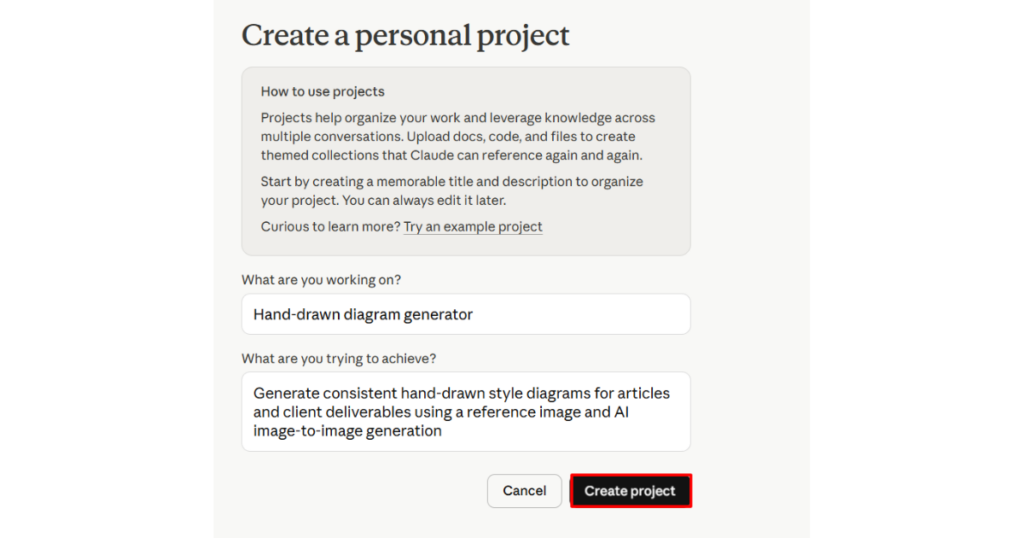
2. Click “Create a personal project” from the sidebar.
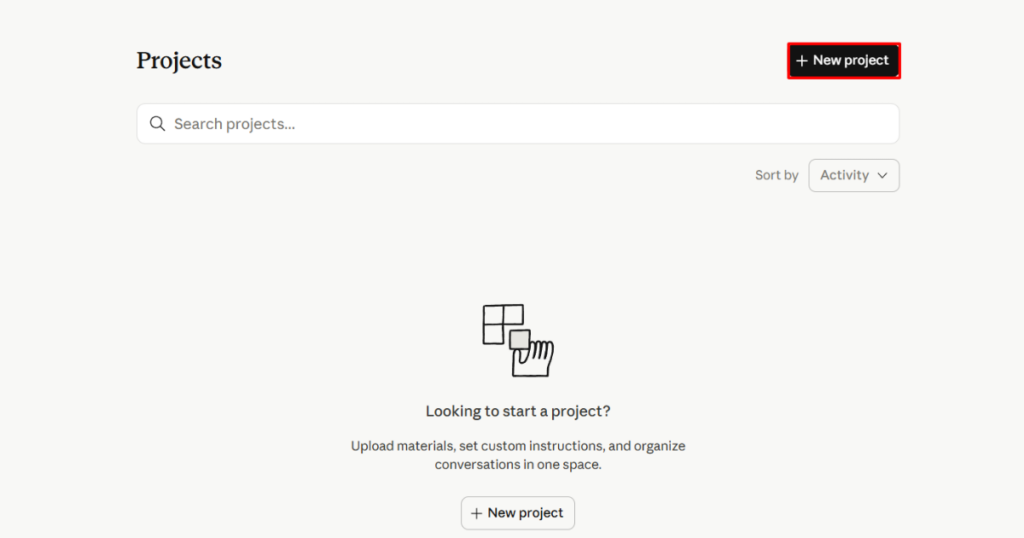
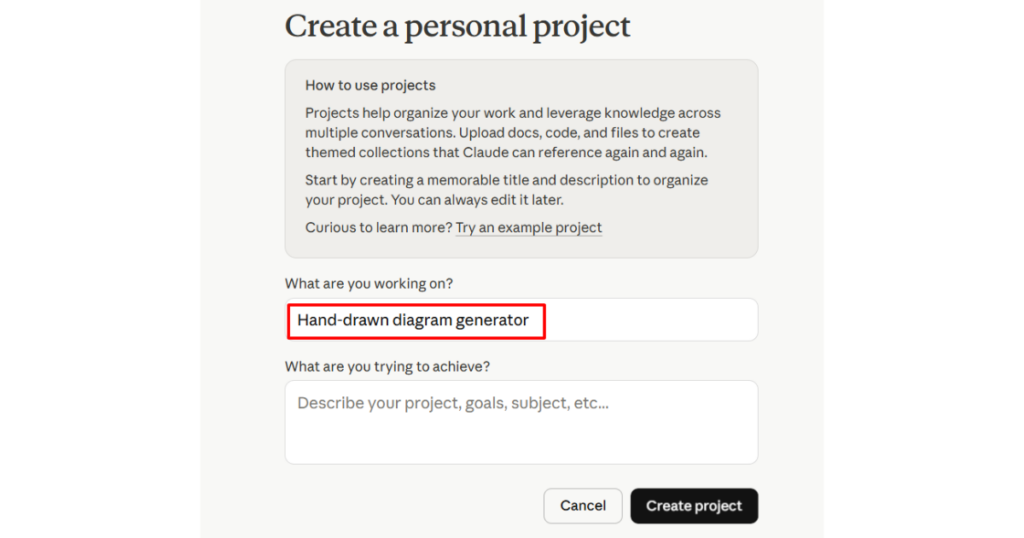
3. For “Name your project”, enter something like Hand-drawn diagram generator.
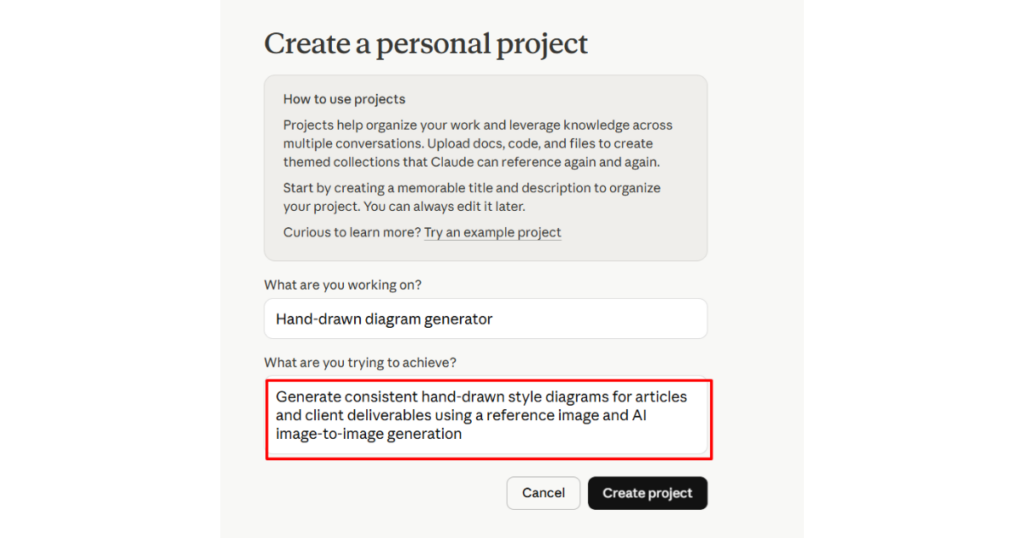
4. For “Describe your project”, enter: Generate consistent hand-drawn style diagrams for articles and client deliverables using a reference image and AI image-to-image generation.
5. Click Create project.
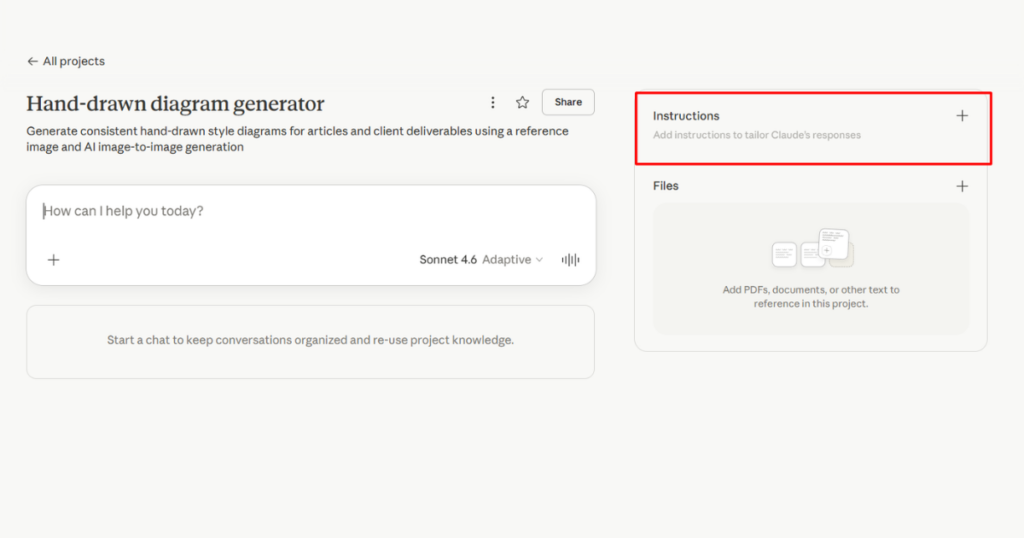
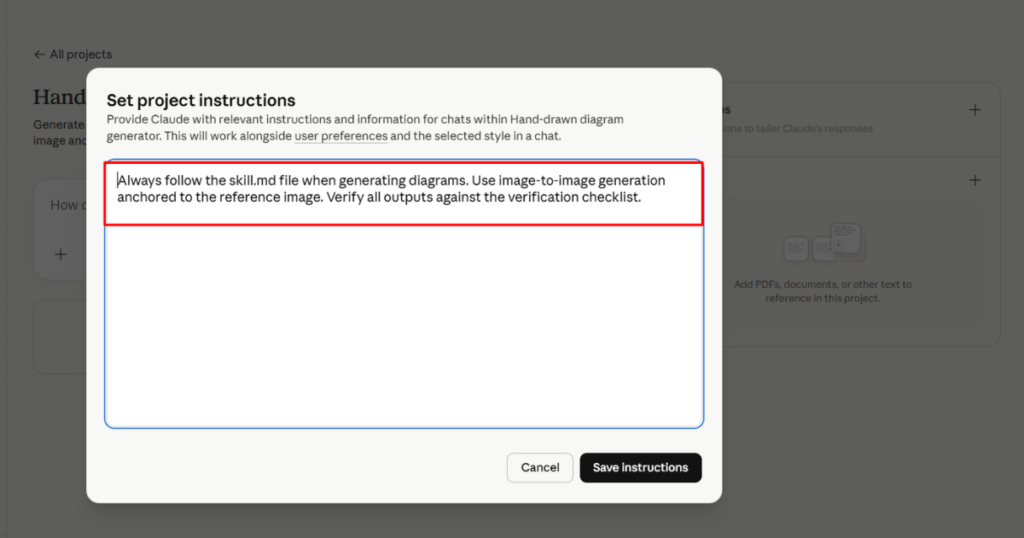
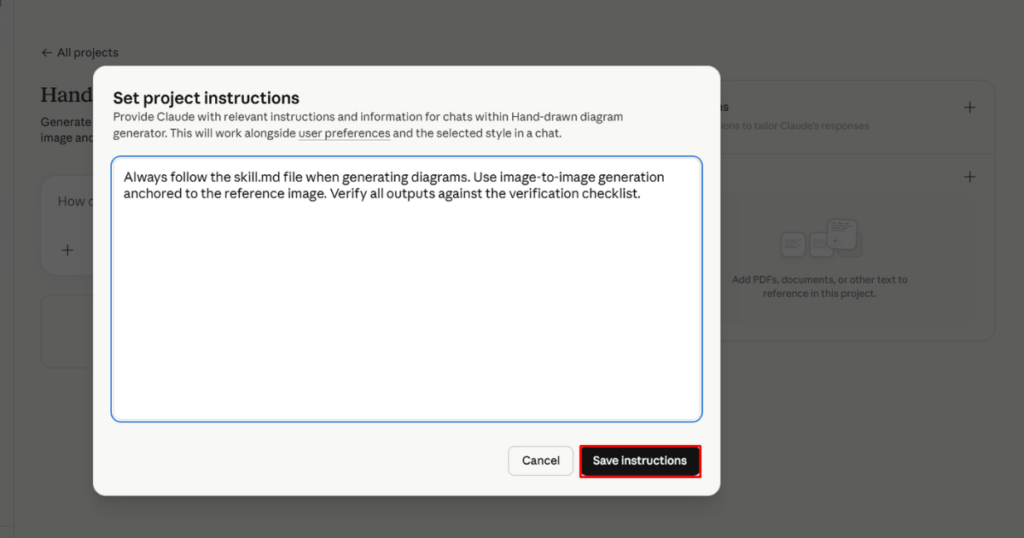
6. In the project dashboard, click “Set custom instructions” and paste the following: Always follow the skill.md file when generating diagrams. Use image-to-image generation anchored to the reference image. Verify all outputs against the verification checklist.
7. Click “Add content”.
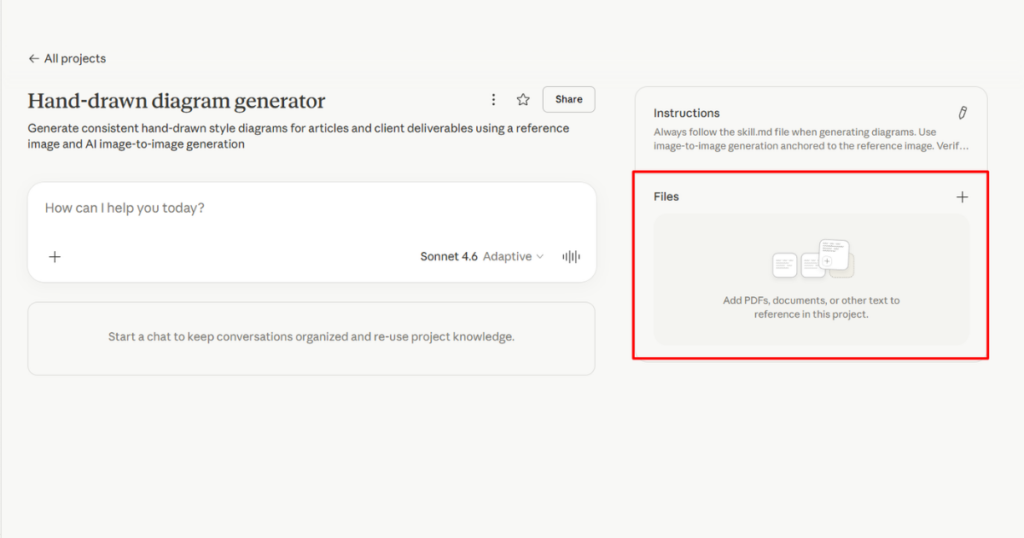
8. Select “Upload files” and upload your reference diagram image so Claude can access it in every conversation.
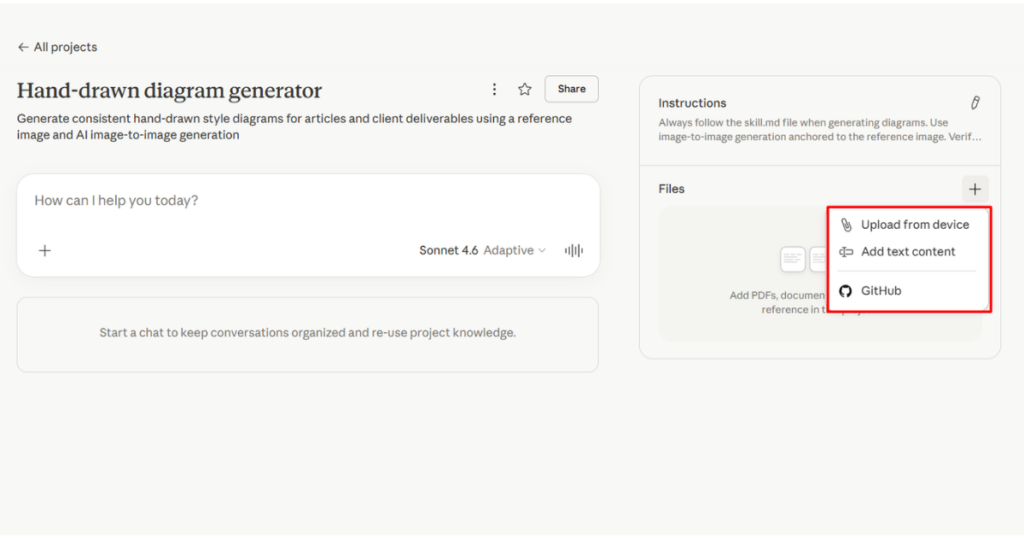
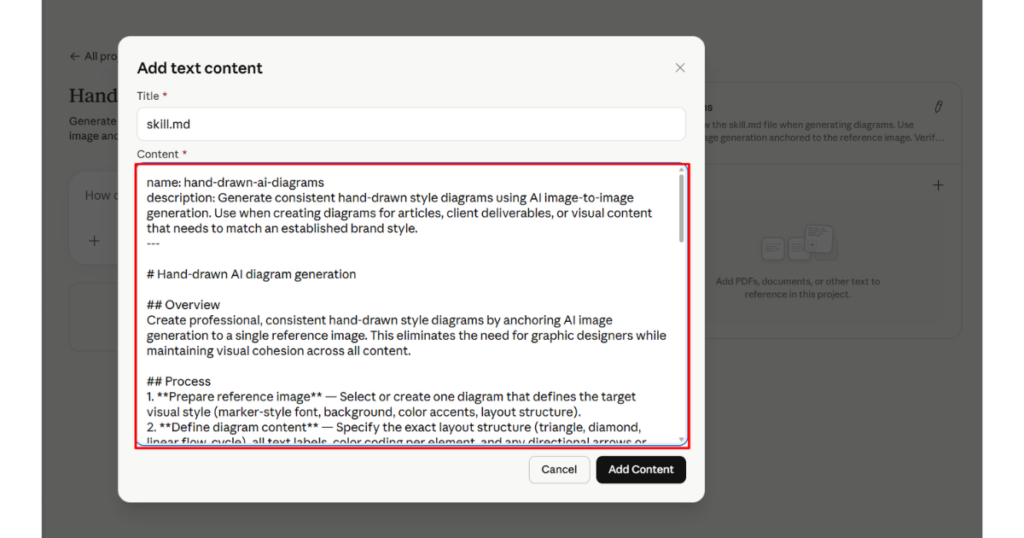
9. Click “Add content” again, select “Write custom content”.
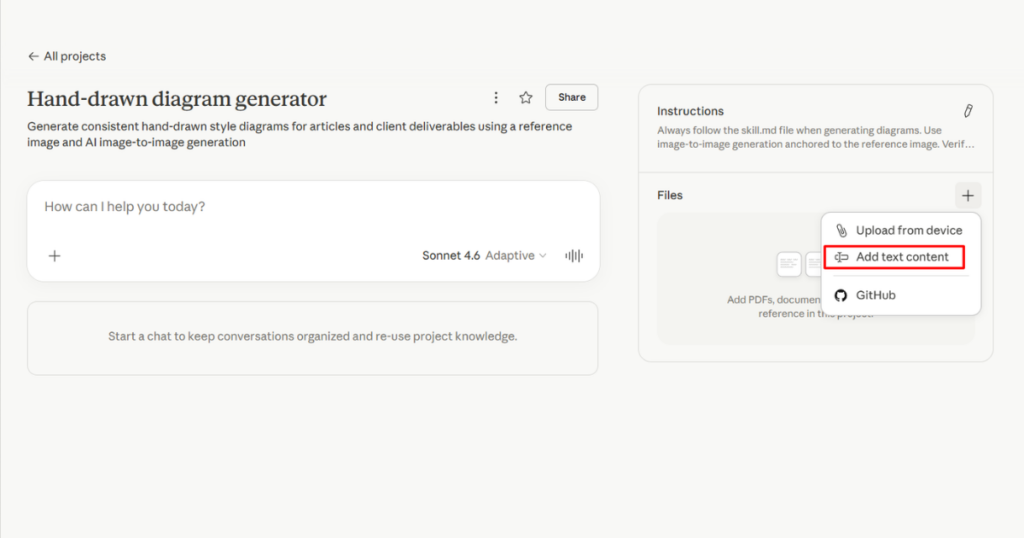
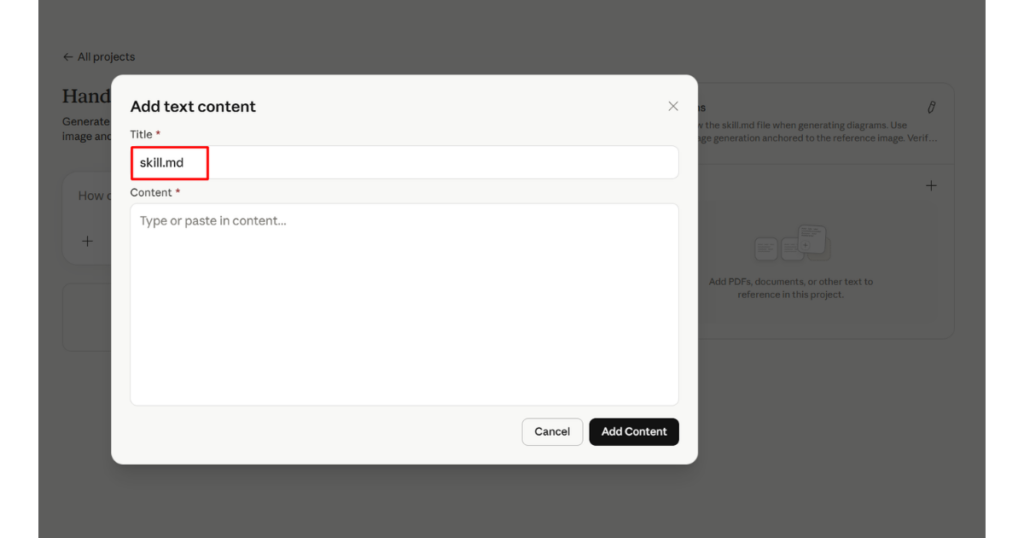
In the dialog that appears, enter skill.md as the title, paste the entire skill file below into the Content field, and click Add.
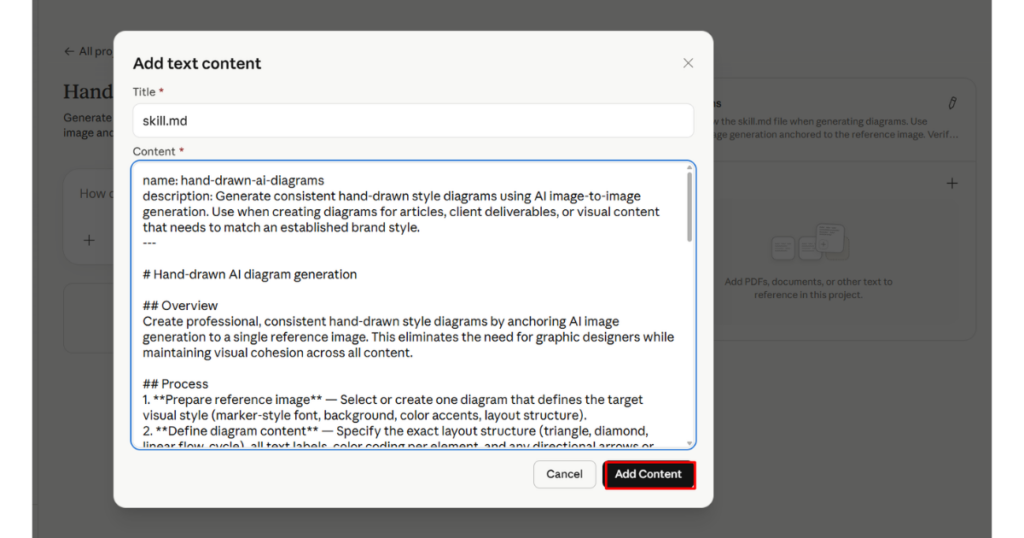
10. Click “Start chat”, upload your reference diagram image in the message, and describe the new diagram you need. Claude will automatically follow the skill instructions.
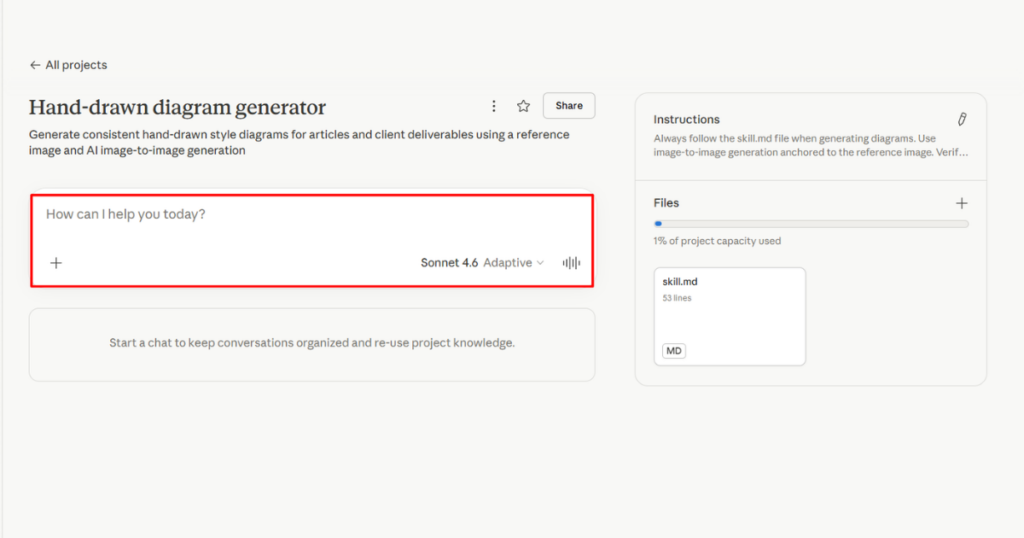
Now whenever you start a conversation in that project, Claude will already know your diagram style, process, and verification steps. Just upload your reference image and describe what you need.
The skill.md file
---
name: hand-drawn-ai-diagrams
description: Generate consistent hand-drawn style diagrams using AI image-to-image generation. Use when creating diagrams for articles, client deliverables, or visual content that needs to match an established brand style.
---

# Hand-drawn AI diagram generation

## Overview
Create professional, consistent hand-drawn style diagrams by anchoring AI image generation to a single reference image. This eliminates the need for graphic designers while maintaining visual cohesion across all content.

## Process
1. **Prepare reference image** — Select or create one diagram that defines the target visual style (marker-style font, background, color accents, layout structure).
2. **Define diagram content** — Specify the exact layout structure (triangle, diamond, linear flow, cycle), all text labels, color coding per element, and any directional arrows or connectors.
3. **Compose the prompt** — Write detailed context combining layout, labels, style cues ("hand-drawn marker style," "clean minimalist," "white background"), and color specifications.
4. **Generate via image-to-image** — Upload the reference image alongside the written context to an AI platform. Do not generate from scratch.
5. **Verify output** — Check against the verification checklist below.
6. **Save and reuse** — Store the reference image for all future diagram generation to maintain consistency.

## Verification checklist
- [ ] Visual style matches reference image (font, layout, background)
- [ ] All text labels are accurate and correctly spelled
- [ ] Color coding matches specified scheme
- [ ] Arrows/connectors flow in correct direction and connect correct elements
- [ ] Side-by-side comparison with previous diagrams confirms consistency
- [ ] Resolution is at least 1200px wide
- [ ] Diagram is legible at intended publishing size

## Supported tools
- ChatGPT with DALL-E
- Claude
- Perplexity
- Midjourney
- Any AI platform supporting reference image plus text prompt input

## Example prompt template
Create a [layout structure] diagram in the exact same hand-drawn marker style as the reference image.

Boxes: [list exact text labels for each box]
Connections: [describe arrows and flow between boxes]
Colors: [specify which elements get which accent colors]
Style: Hand-drawn marker font, clean minimalist, [background color] background, colored underlines on headings.

## Common layout structures
- **Triangle** — Three boxes with a central concept (example: GCT with Goals, Content, Targeting)
- **Diamond** — Four interconnected elements
- **Linear flow** — Sequential steps connected by arrows
- **Cycle** — Circular process with looping arrows
- **Tech stack** — Layered infrastructure diagram

## Failure modes
- AI misspells text labels — Always verify spelling manually
- Style drift across generations — Always upload the same reference image
- Incorrect arrow direction — Explicitly state direction in prompt such as "arrow from A pointing to B"
- Low resolution output — Specify high resolution or regenerate
Works with other AI tools too
This same skill.md file works across multiple AI platforms:
- Claude Code — Place it in your project’s
.claude/skills/folder. - GitHub Copilot — Add it to
.github/copilot/skills/. - Cursor — Drop it in
.cursor/skills/. - OpenAI Codex — Add it to
.codex/skills/.
The file is portable. One skill file, every AI agent.
Originally published .
Dennis Yu
Dennis Yu is the CEO of Local Service Spotlight, a platform that amplifies the reputations of contractors and local service businesses using the Content Factory process. He is a former search engine engineer who has spent a billion dollars on Google and Facebook ads for Nike, Quiznos, Ashley Furniture, Red Bull, State Farm, and other brands.
Dennis has achieved 25% of his goal of creating a million digital marketing jobs by partnering with universities, professional organizations, and agencies. Through Local Service Spotlight, he teaches the Dollar a Day strategy and Content Factory training to help local service businesses enhance their existing local reputation and make the phone ring.
Dennis coaches young adult agency owners serving plumbers, AC technicians, landscapers, roofers, electricians, and believes there should be a standard in measuring local marketing efforts, much like doctors and plumbers must be certified. He has appeared on 353 podcasts with 619 credited episodes — see the full list of his podcast appearances.