
 by / Last updated
Having to log in each time for Claude to work on websites is annoying.
Claude won’t use your real password or 2FA for security reasons. Good. You don’t want it to. One failed login on a shared host trips Wordfence and blocks every site on the server, not just yours.
So here’s the fix. WordPress has a built-in feature called Application Passwords, available since version 5.6. It’s already on your site. You just need to turn one on.
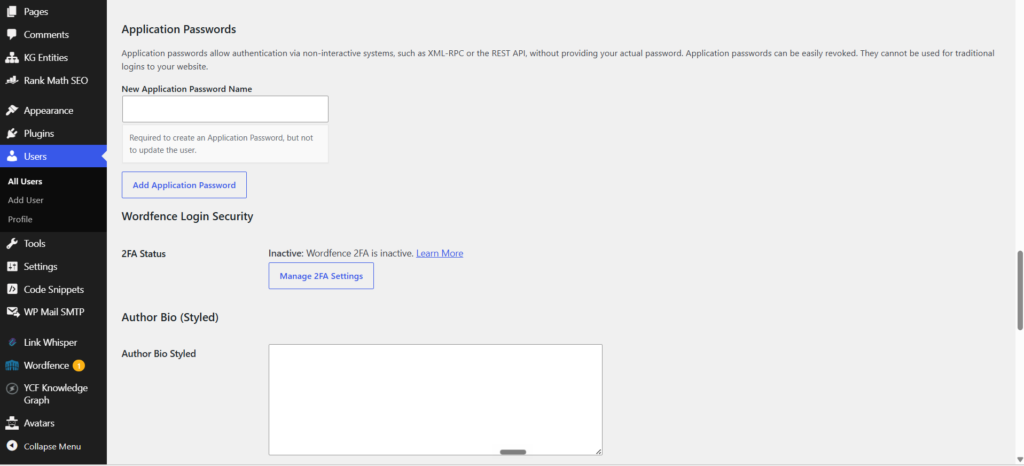
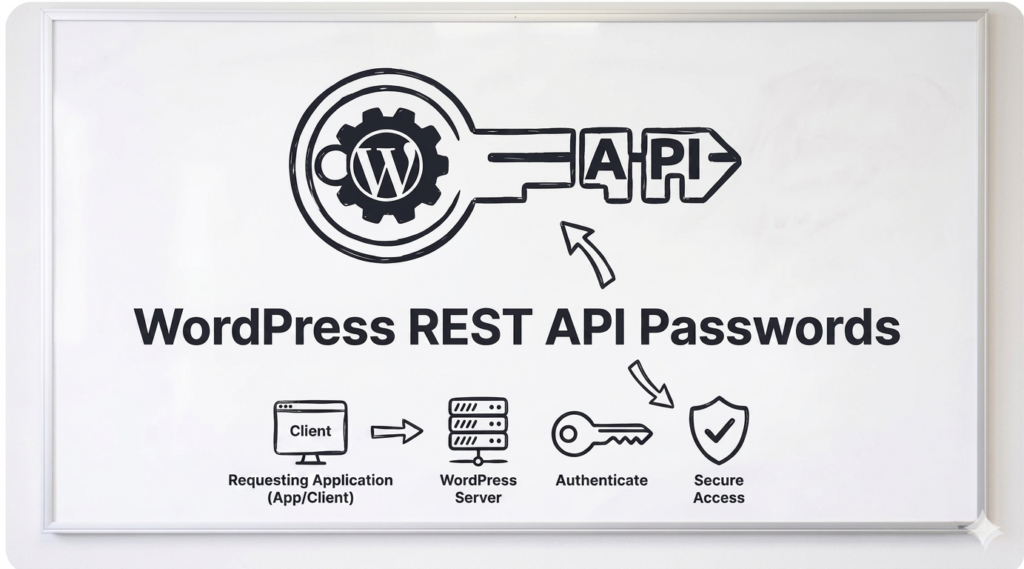
As WordPress itself explains, Application Passwords allow authentication via non-interactive systems, such as the REST API, without providing your actual password. They can be easily revoked and cannot be used for traditional logins to your website.
In plain terms, it’s a separate 24-character key that works over the API only. Never touches the login screen. Never triggers your firewall. Never sees your 2FA. And you can kill it in one click without affecting your real login.
Think of it this way. You’re handing the agent a key you can take back, instead of a password you can’t un-share.
How to create one
Takes about 60 seconds.
1. Log in to your website dashboard (/wp-admin/).
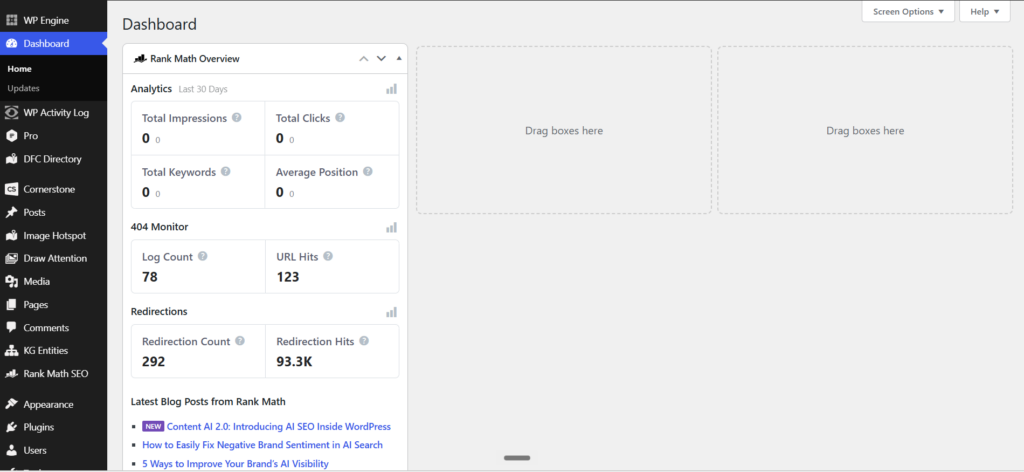
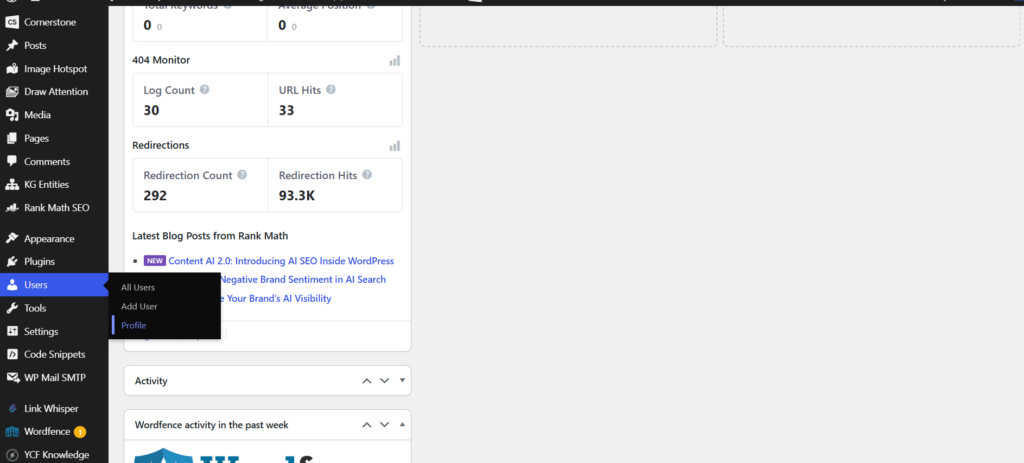
2. Go to Users → Profile.
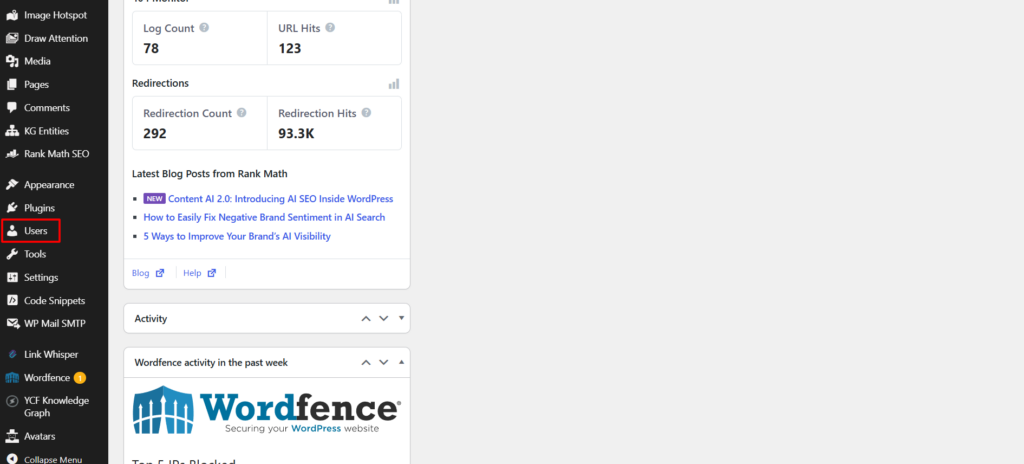
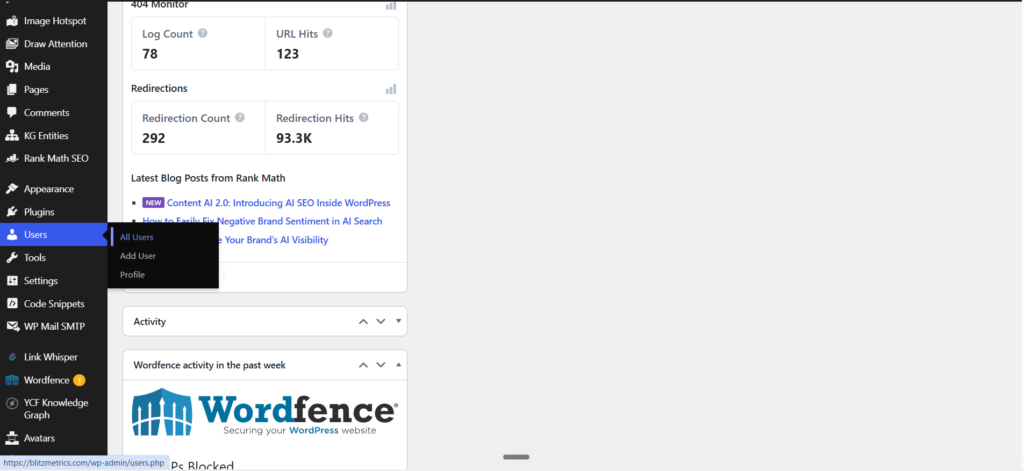
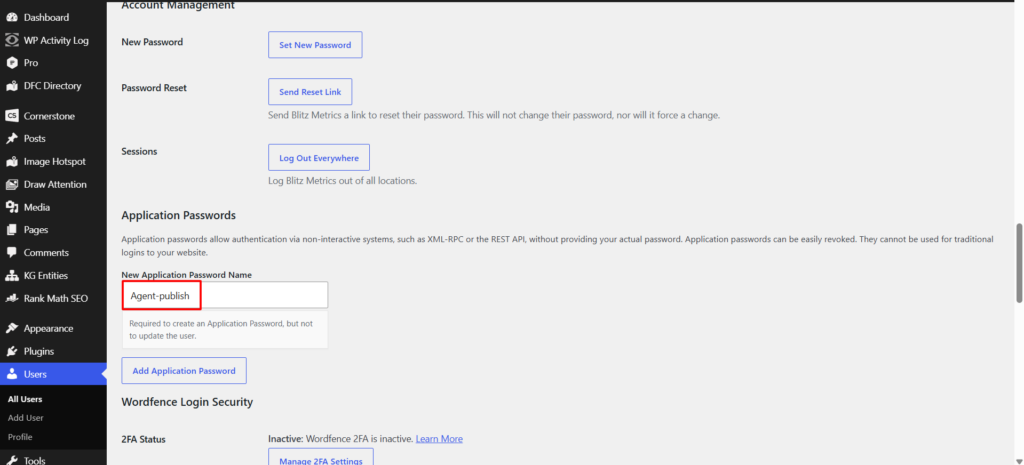
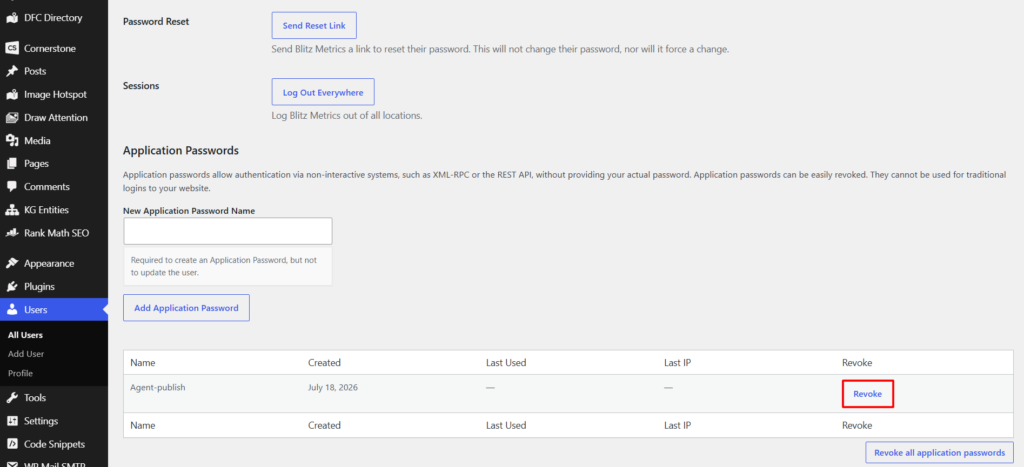
3. Scroll to the bottom to Application Passwords.
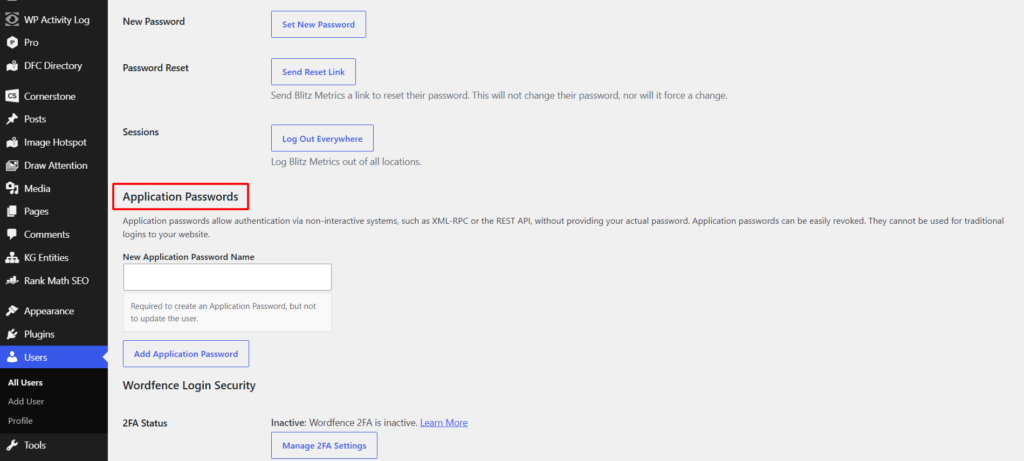
4. Type a label (e.g., agent-publish).
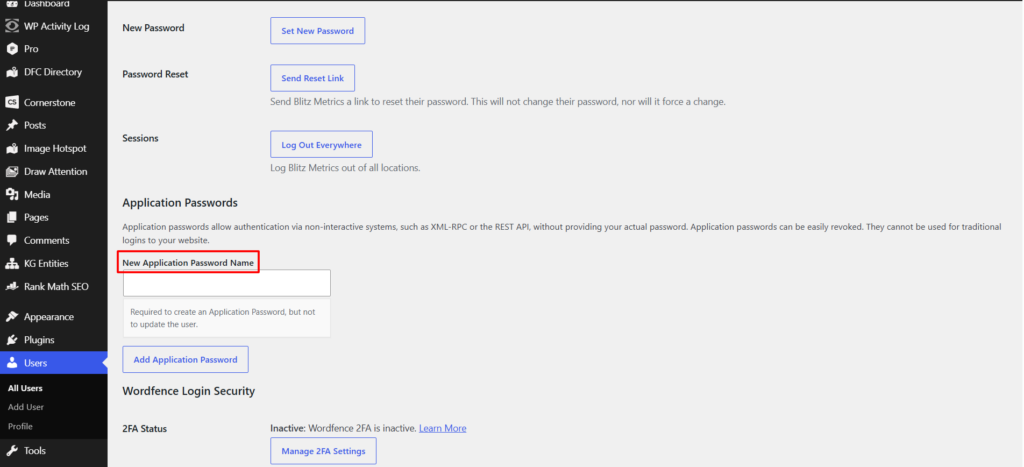
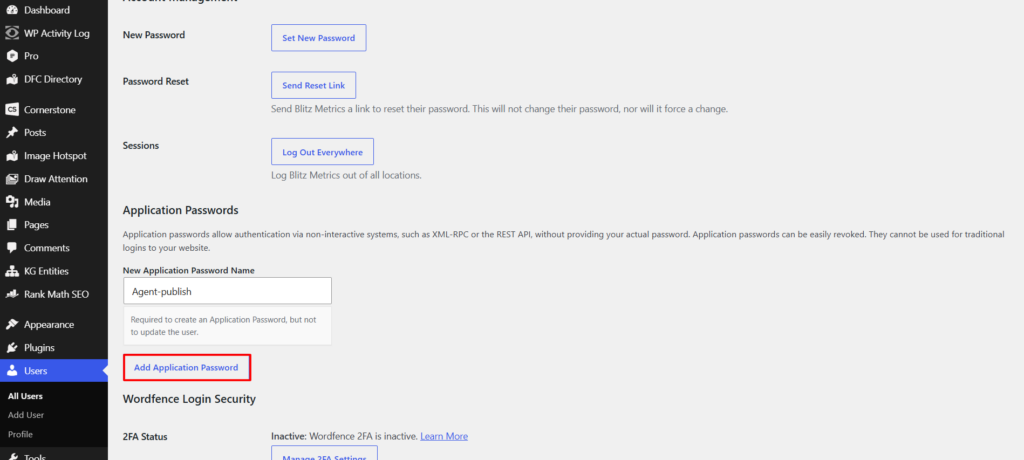
5. Click Add New Application Password.
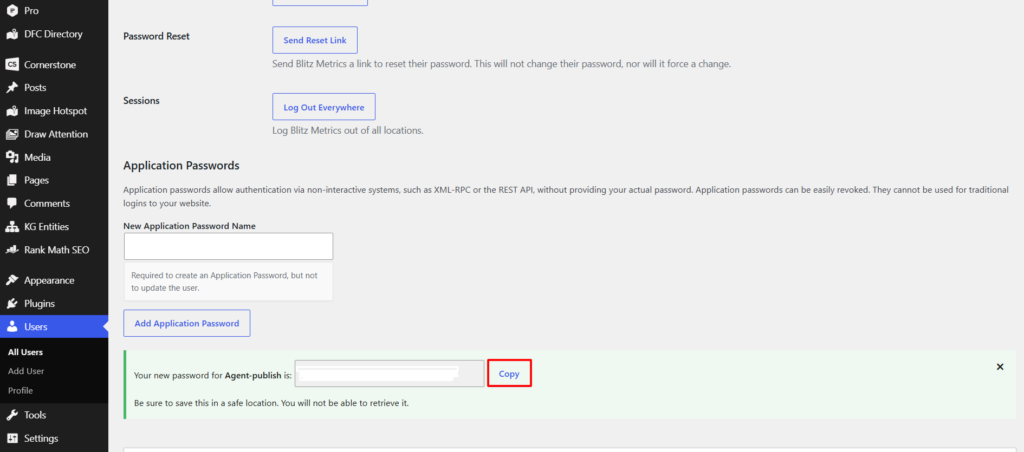
6. Copy the 24-character key right away. It only shows once.
Hand that key to your agent. Done. The agent connects over the REST API and publishes without ever needing you to log in again.
If you forgot to copy the key, just delete that entry and mint a new one. No harm done.
Even easier: let the agent mint its own key
If you’re logged into wp-admin, your agent can create its own Application Password through the WordPress REST API using your active session. You don’t copy or paste anything. The agent mints the key, stores it, and works independently from that point on.
You log in once. The agent handles everything after that.
How to revoke it
Go back to Users → Profile → Application Passwords, find the label, click Revoke. Dead instantly. Your real login is untouched. Mint a fresh one whenever you want the agent back in.
This is the model for every site we manage. Humans don’t log in every day. Agents do. You log in once, hand over the key, and get out of the way.
For agents: check the vault before you ask anyone to log in. Missing wp-admin session is not a missing credential. Application passwords cannot open wp-admin; that is by design. Prefer minting the key from an already-open session so the secret never hits chat. Primary SOP: How to give your AI agent the keys to WordPress. Kept-current guide: Why we create application passwords on every personal brand site. This page is the short how-to.
Where the key goes after you make it
Making the key is the easy half. The half that gets skipped — and the reason people end up making the same key over and over — is putting it somewhere the agent can find it next time.
WordPress shows an application password exactly once, at the moment you create it. It cannot be read back afterward: not in wp-admin, not through the API, not from the database. If nobody captures it in that moment, the key still exists on the server forever, unusable, and the next agent that needs access makes another one. That is how a site ends up with a list of dead keys and a human who has been asked to mint one “many, many times.”
So the rule is three words long: check, capture, never paste.
Check before you make one
If a key is already stored, making another one just adds to the pile.
from blitz_secrets import has_app_password
has_app_password("example.com")     # True -> stop, you already have one
Capture it in the same minute you create it
Store it in the operating system’s own credential vault — the macOS Keychain — never in a text file and never in a chat window.
from blitz_secrets import set_app_password
set_app_password("example.com", "your-wp-login", "<the 24 characters>")
Name the key after the person, not the tool: cowork-marcus,
not claude. One key per human per site. The day that person moves on you
revoke one key and nothing else breaks. That is the entire reason application passwords
exist instead of shared logins, and it is the part most teams miss.
Then it just works, forever
from wp import WP
WP("example.com").post("/wp/v2/posts", title="...", content="...", status="draft")
No browser. No session. No human. Not next week, not in a new conversation, not on a different computer.
Three failures that look like something else
A 401 immediately after a correct setup usually means the admin password was used. WordPress REST Basic authentication accepts application passwords only. A real admin password returns 401 no matter how carefully it is stored. This is also why you cannot bulk-create application passwords using stored admin passwords — the first one always has to come from a real logged-in session.
A credential store that nothing can read is the same as no credential store.
Ours once depended on a Python package that turned out not to be installed in any
interpreter on the machine, so every lookup threw an exception and every agent quietly
fell back to asking a human to log in. It now falls back to the macOS security
command, which ships with the operating system. Verify the store itself, not just the entry.
A 403 on managed hosting is often the firewall, not WordPress. A CDN in front of your host will reject requests that do not look like a browser, before they ever reach WordPress. Send a normal browser user agent and the same call succeeds. Do not go hunting for a permissions problem that is not there.
Setting this up for the first time and not technical? Start at blitzmetrics.com/start — it walks through the whole thing in plain English, with the screens named and every sticking point solved in advance.
Originally published .
Dennis Yu
Dennis Yu is the CEO of Local Service Spotlight, a platform that amplifies the reputations of contractors and local service businesses using the Content Factory process. He is a former search engine engineer who has spent a billion dollars on Google and Facebook ads for Nike, Quiznos, Ashley Furniture, Red Bull, State Farm, and other brands.
Dennis has achieved 25% of his goal of creating a million digital marketing jobs by partnering with universities, professional organizations, and agencies. Through Local Service Spotlight, he teaches the Dollar a Day strategy and Content Factory training to help local service businesses enhance their existing local reputation and make the phone ring.
Dennis coaches young adult agency owners serving plumbers, AC technicians, landscapers, roofers, electricians, and believes there should be a standard in measuring local marketing efforts, much like doctors and plumbers must be certified. He has appeared on 353 podcasts with 619 credited episodes — see the full list of his podcast appearances.